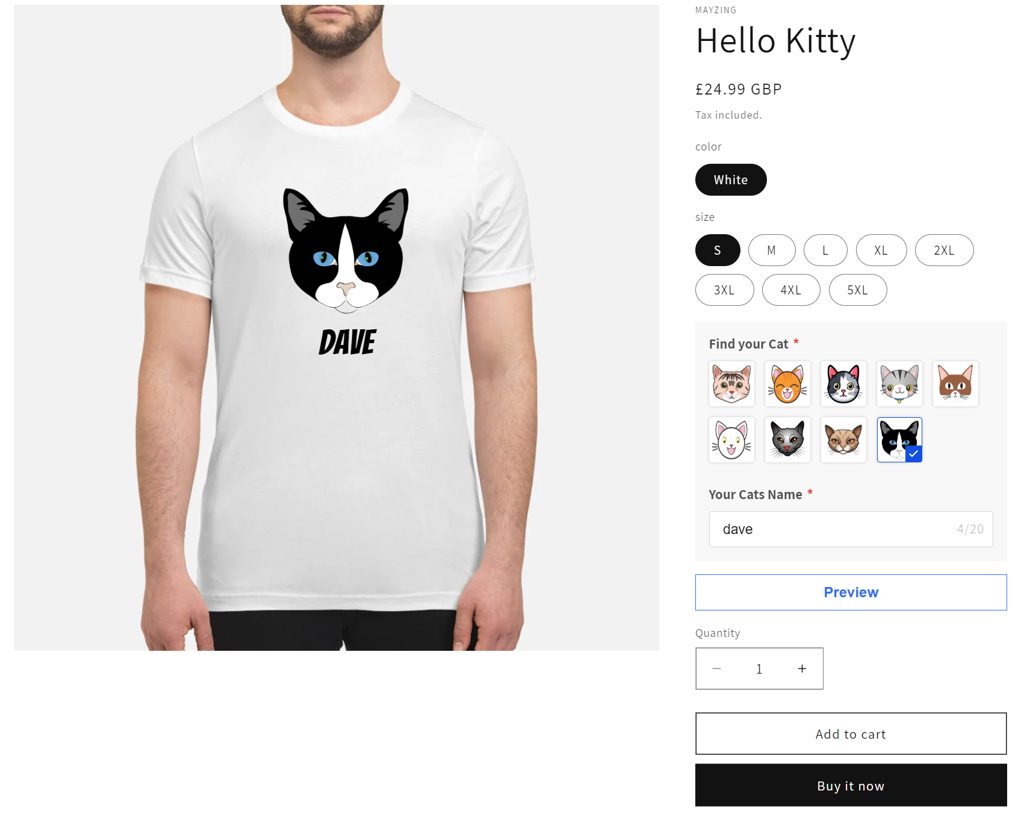
The Mayzing platform has integrated a workflow with the leading Shopify personalisation app Teeinblue to allow Merchant to create amazing products for their buyers to be able to personalize on their store and send those orders to for fulfilment in the most efficient manner.
Mayzing uses the “Shopify Products” method of integration with Teeinblue which provides the Merchant more flexibility of managing their personalised orders from within the main Shopify Admin dashboard alongside non-personalised and non-POD orders, if applicable.
It is recommended to read Teeinblue documentation and users guides to get an in-depth knowledge of how to create personalised products in Teeinblue.
Pre-requisites
Prior to using this guide you will have completed the following
Created a Mazying account at dashboard.mayzing.com
Created a Shopify account at admin.shopify.com
Connected your store to your Shopify account by following this user guide
Installed the Teeinblue app on Shopify. To do this on the Shopify dashboard, click apps in the left nav bar and type Teeinblue, then follow the installation steps.
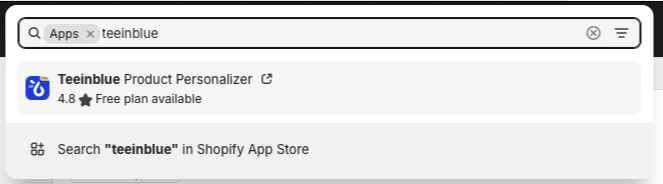
Click install
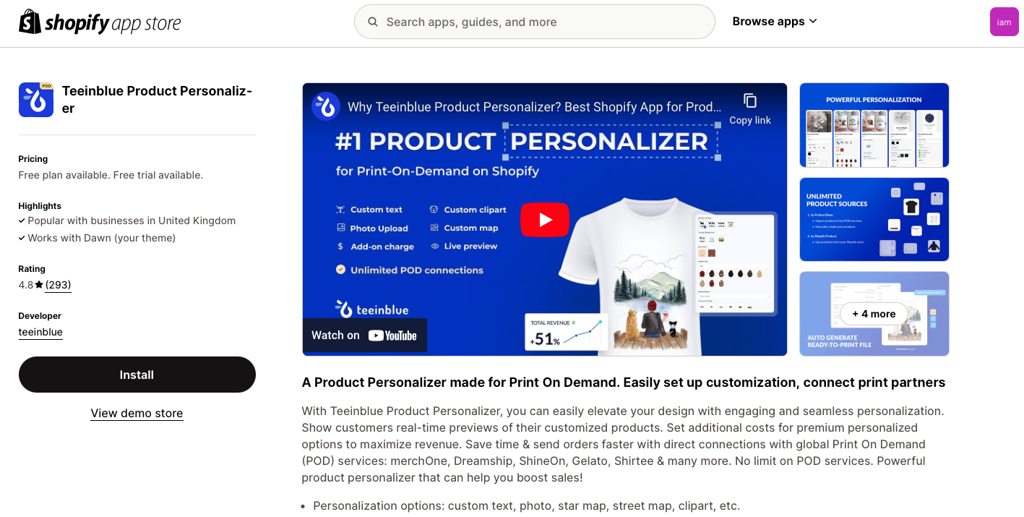
Then click install again
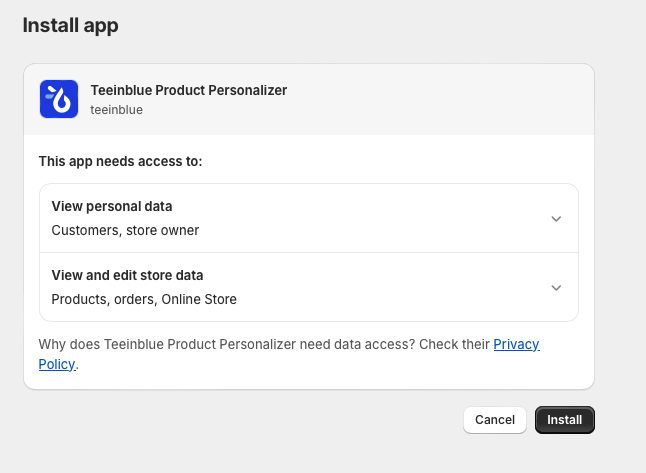
Select the second option “Use existing products in my Shopify store”
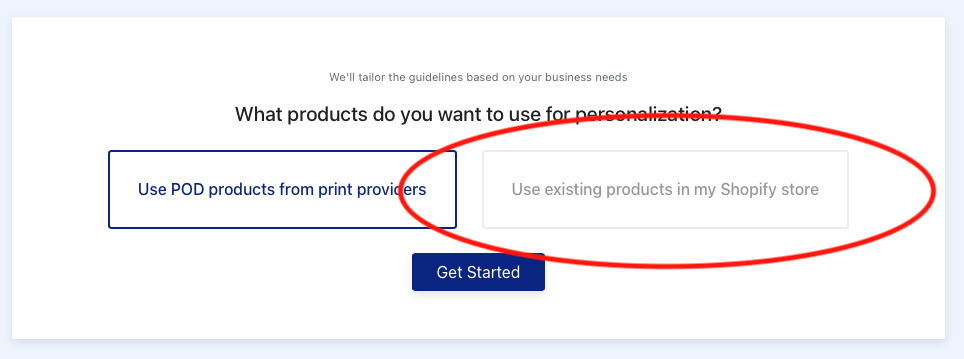
You are now ready to start.

Creating a product using Teeinblue customisation
Go to the Mayzing SXP Dashboard - https://dashboard.mayzing.com
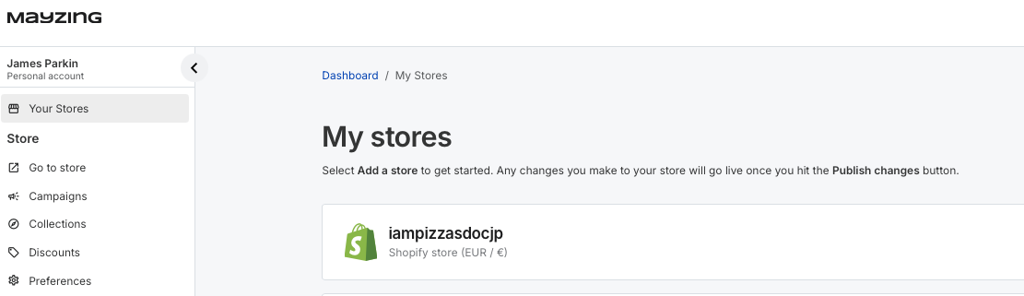
Click on your stores, and select your Shopify store.
Go to products and create a blank Product (no text or image layers). The final design will be created in Teeinblue.
If you want to use other product colours, add a text layer, then use the colour picker to choose the colour products you wish. Once you have added them, delete the text layer. The colour picker will disappear, but the colours you selected will remain picked.
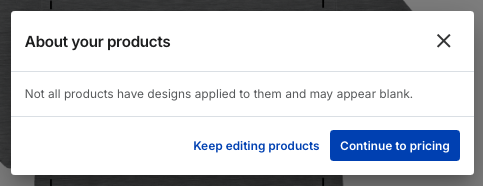
Press Continue to pricing. You will see a warning here that you are creating a blank product. This is what we want to do, so press Continue to pricing again.
Set the price you wish to sell your product at and press Continue to review
Select the mockups you wish to use in Teeinblue, and press Save and continue
Publish the blank product to your store.
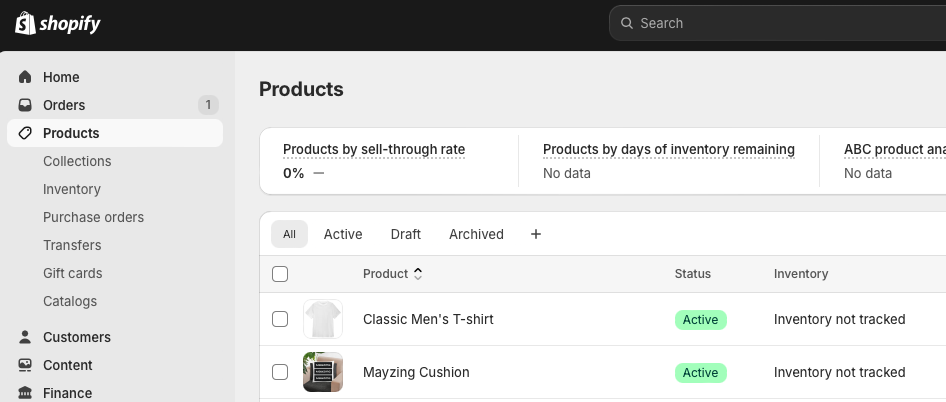
Go to your Shopify dashboard and click on products to make sure the product is in Shopify, and is ready for customisation in Teeinblue.
Go to the Teeinblue Dashboard - https://portal.teeinblue.com
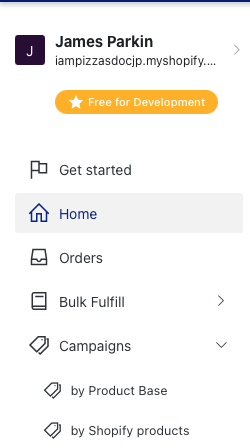
On the left nav, expand campaigns, and click on by Shopify products
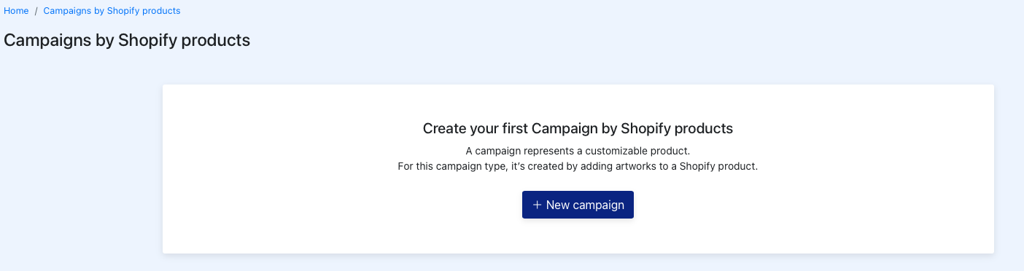
Click on New campaign
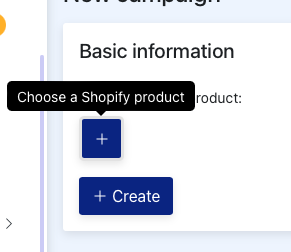
Click on the + to Choose a Shopify product
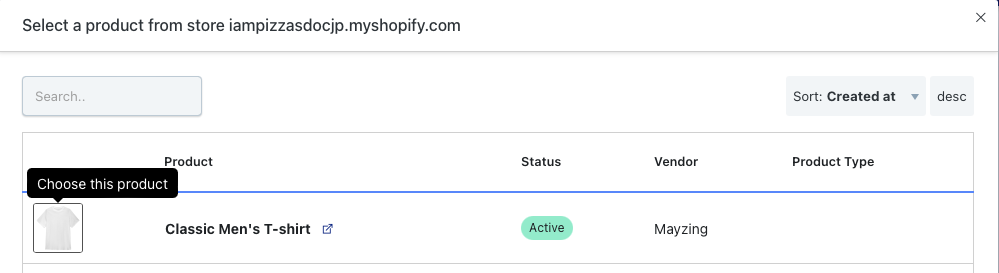
Choose the product that you published to Shopify from Mayzing
Press + Create

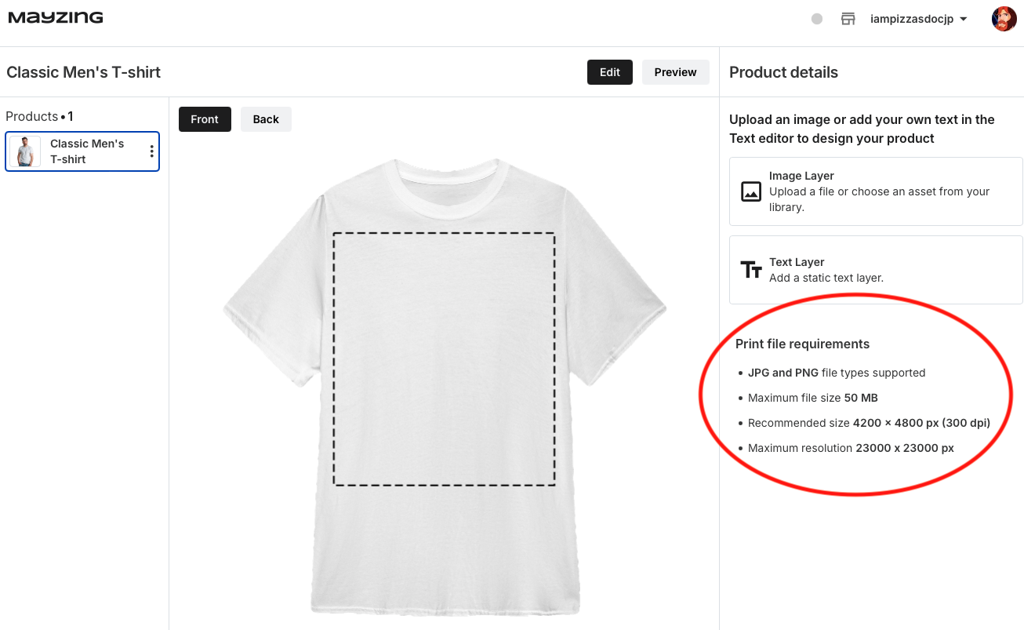
Configure your personalisation. The detailed steps for doing this are on the Teeinblue app - Important Note: Use the same print area dimensions that are referenced in the Mayzing builder. All products have different dimensions, you can check these in the product builder page on the right hand side for each product
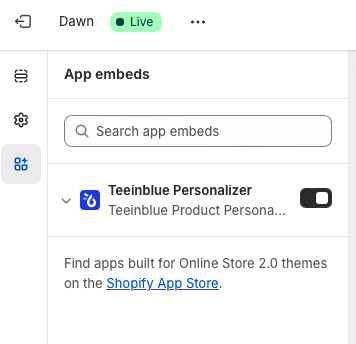
You will need to activate the Teeinblue app embed in your Shopify theme settings on the Shopify dashboard during this process.
Launch your new campaign

Update the blank product in Mayzing to have the new artwork, and publish the updated product
The personalised product is now complete and on your Shopify store ready for purchase.