Whilst Mayzing maintains a robust supply chain with regional redundancy and strives to ensure catalog items are always in stock, there may still be occasions where certain variants become temporarily unavailable (out of stock). See below for an example of how this would appear in your Mayzing Dashboard.
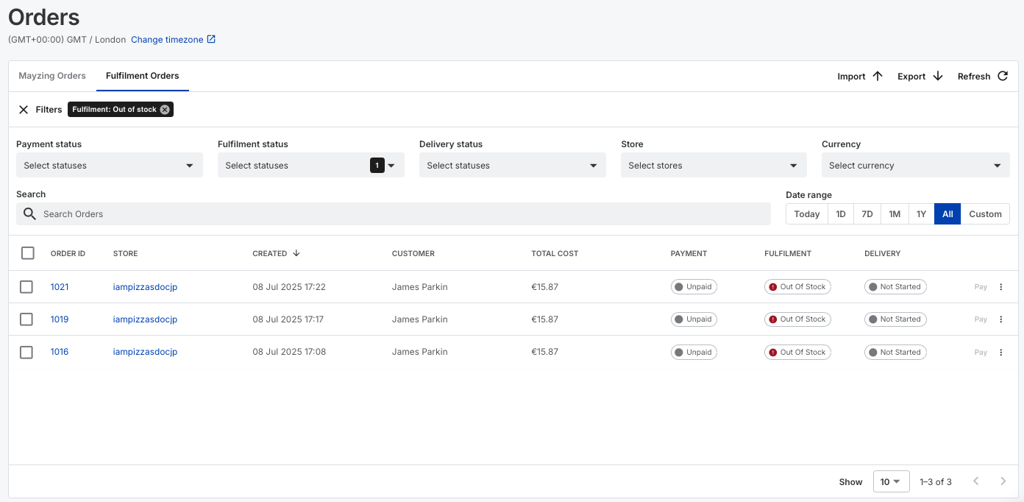
To stop this happening for any future orders while the stock issues are resolved you can follow the guide for Inventory Management.
Or you can use the guide to remove a product. This would be if the buyer no longer wanted the out of stock product
Click in to one of the impacted orders, to see what the item is that is causing the issue.
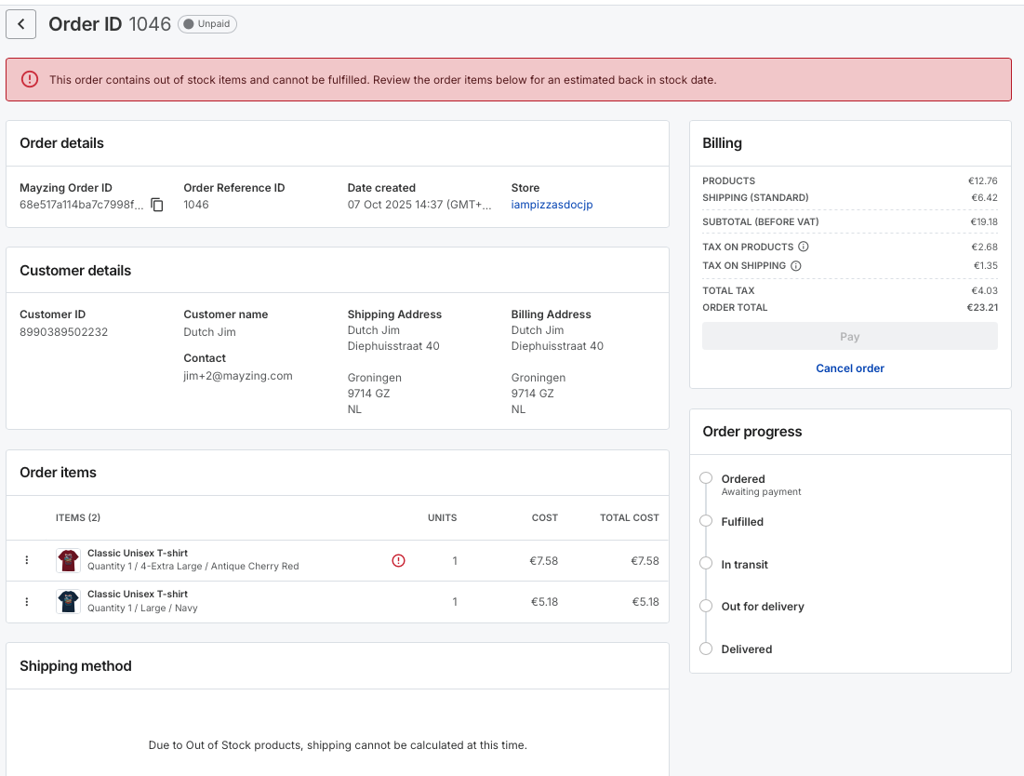
We can see in this example, that the 4XL Antique Cherry red shirt is out of stock. While the navy blue variant is in stock.
To start with you’ll need to speak to your customer and confirm whether they want the item in a different colour.
Once they have confirmed that they would like a different colour, you need to log in to your Shopify dashboard.
Find the impacted order, and click in to it.
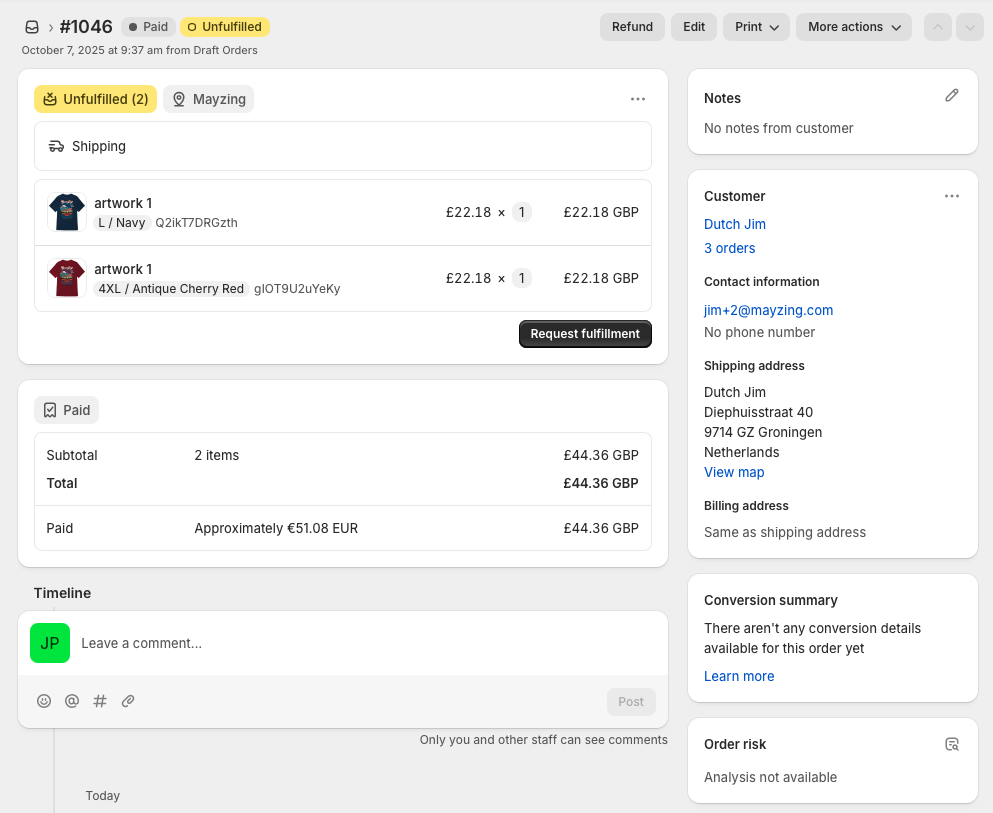
Click the Edit Order button towards the top right.

This takes you in to the screen where you can edit the order.
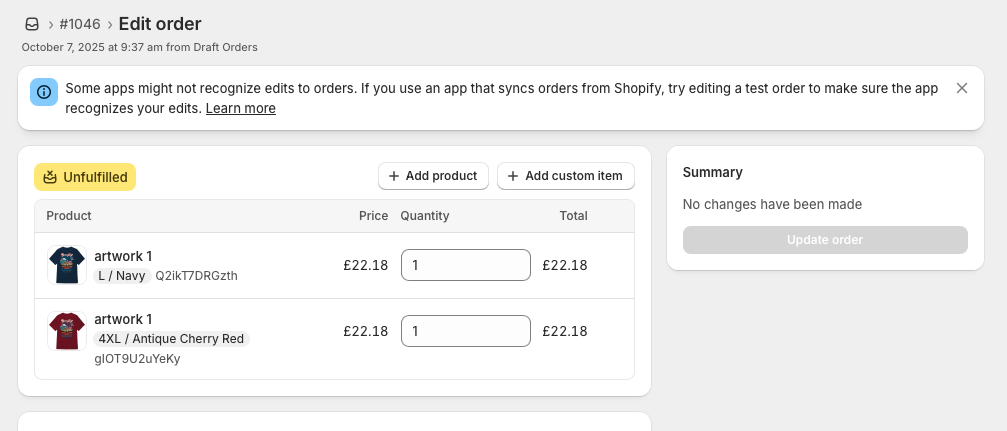
Click the X next to the impacted product.
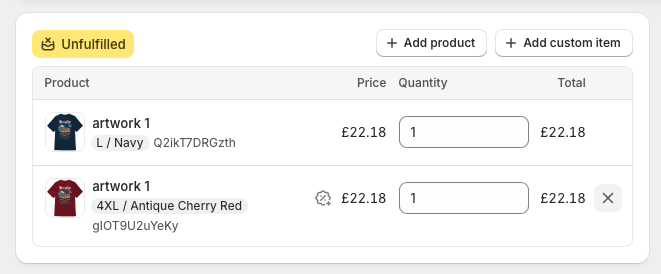
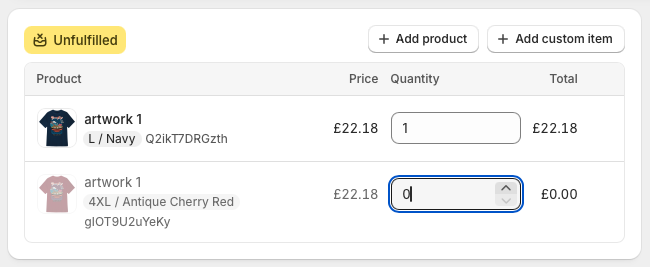
The order is updated to show that you have removed the product.
Now click the add product button.
search by product name, to find the product you are adding.
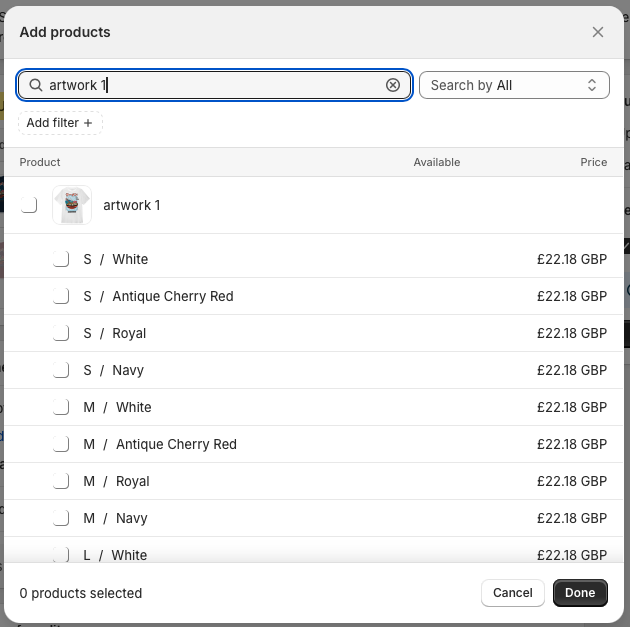
Choose the product, and press Done.
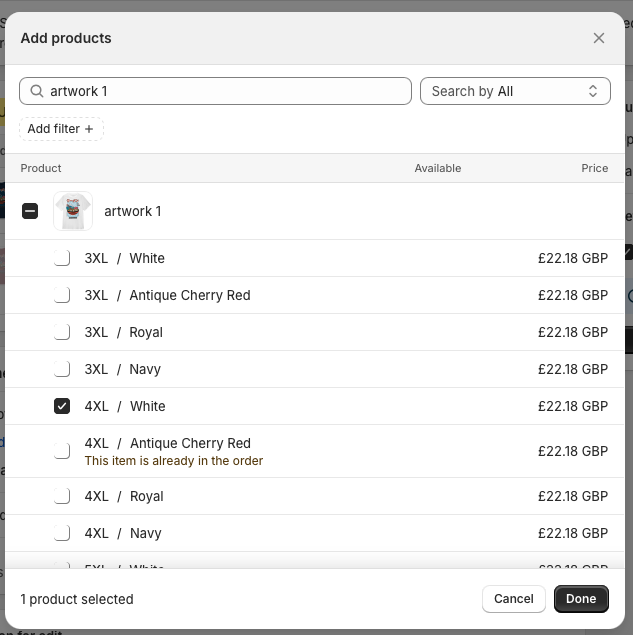
You’ll now see the added product.
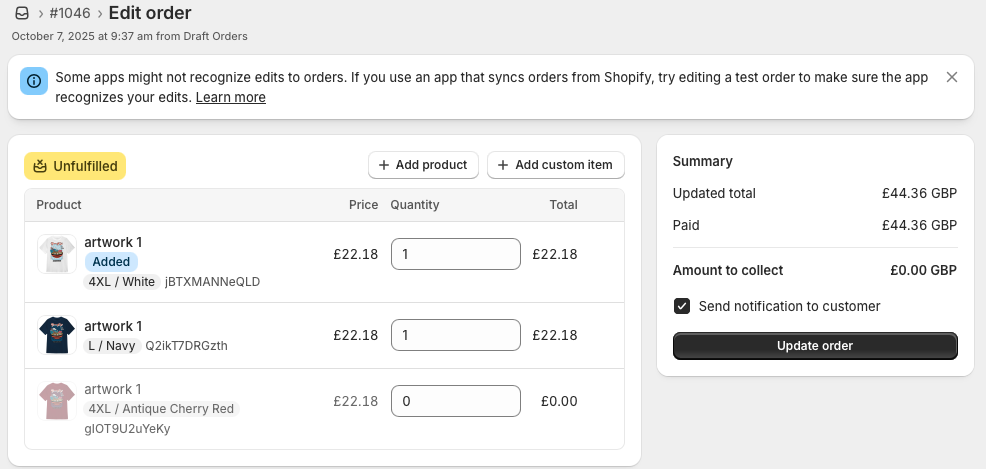
Untick the send notification to customer if you don't want an email sent to them about the change to their order.
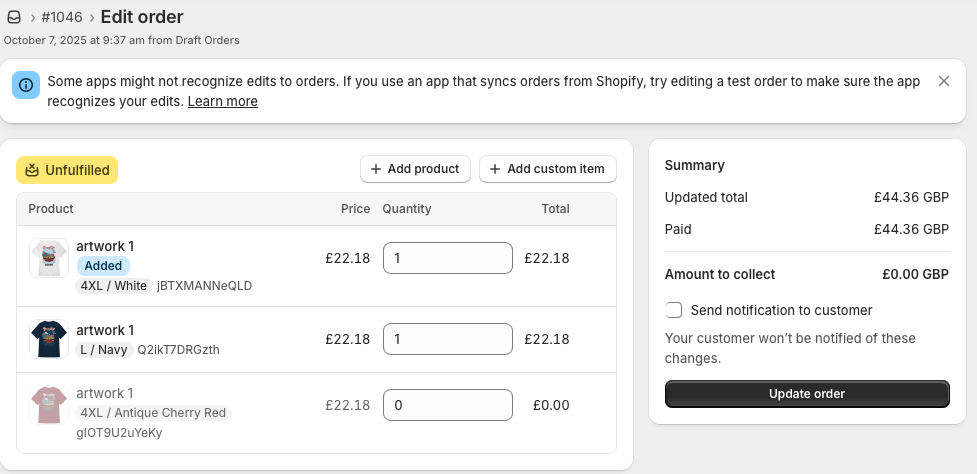
Then press update order. You’ll see a brief popup to say that the order has been updated. And then will return you to this screen, where you can see the status of the order.
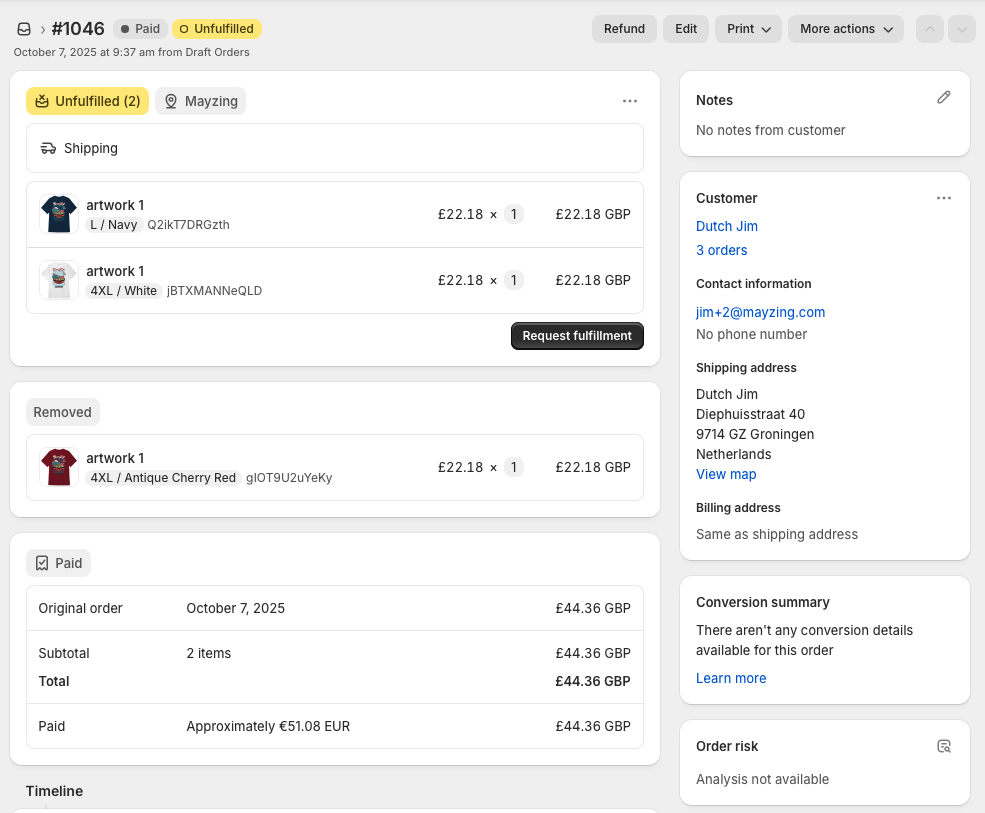
Now return to the Mayzing Dashboard, and press refresh, where you’ll see the order has been updated.
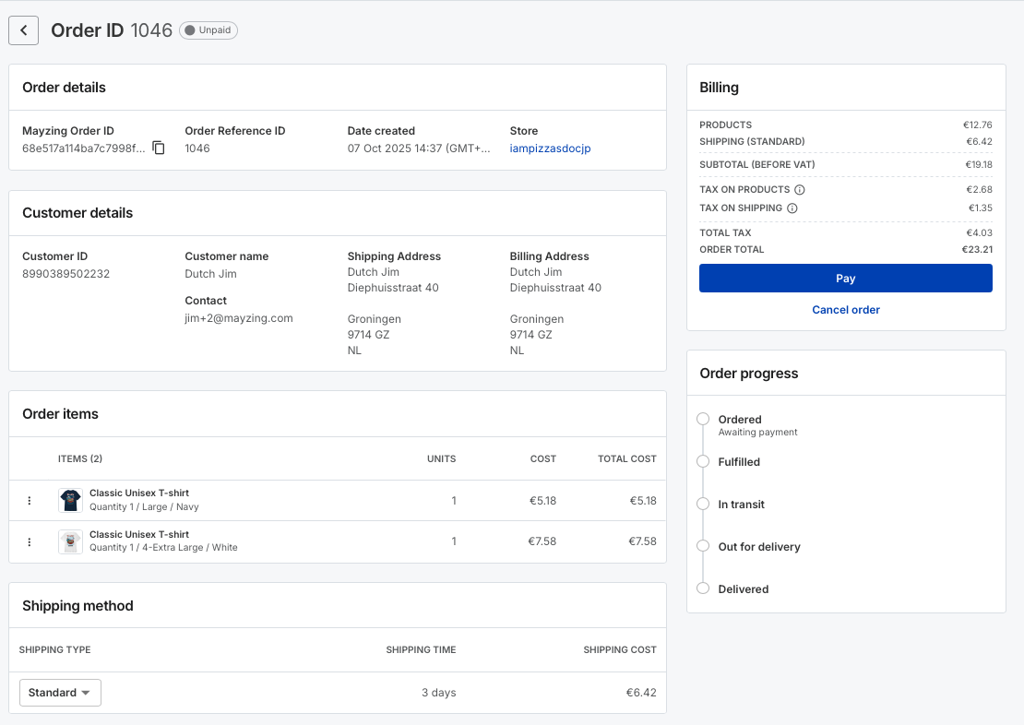
Now press pay, to have the order sent for fulfilment.
