Bulk Management: Instead of creating or modifying each order separately, you can process large batches of orders in a single upload.
Channel Agnostic: Import and manage orders from any of your sales channels — online stores, marketplaces, phone orders, etc. — and let Mayzing handle the fulfillment.
Easy Integration: Most order management systems can export and import data in CSV format, making it simple to transition data between platforms.

Go to the Mayzing SXP Dashboard - https://dashboard.mayzing.com
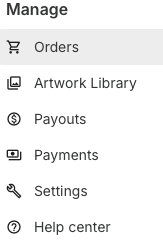
Go to the Orders tab
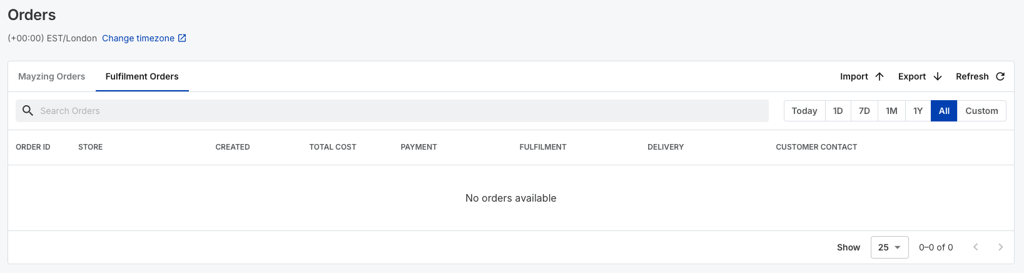
Click on Fulfilment orders
Click on Import which will bring up this Modal
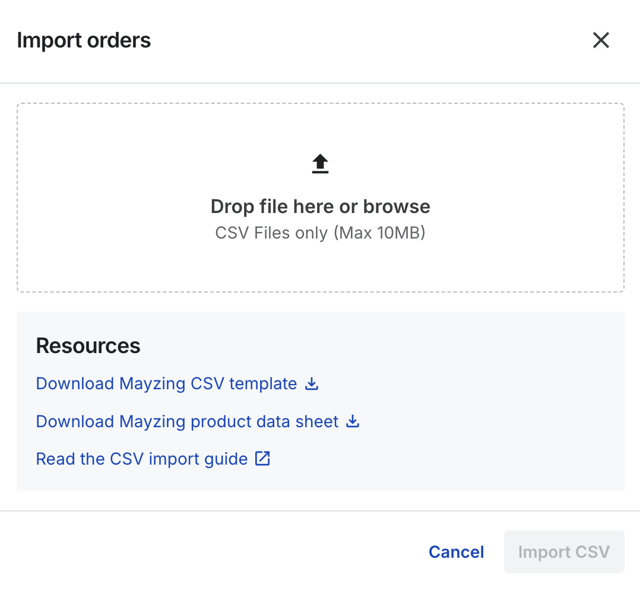
If you are ready to import your Orders CSV jump to step 9
If you have not prepared your .csv file yet, click on Download Mayzing CSV template, this will download the template that you need to fill in. You can also download it here.
Fill in the following information for each line.
order_reference (Required) - An identifier of the external order (for example, an order ID from another ecommerce platform). If multiple lines in the import share an Order Reference, they will be grouped into a single order.
store (Required) - A store name or descriptor to identify the sales source for the order. We recommend using the domain URL of a store (e.g. www.mystore.com)
currency (Required) - The currency in which you would like to be charged for the order. Permitted currency values are USD, EUR and GBP.
retail_currency (Required) - The currency the item was sold in, in ISO 4217 format; this should reference the number value in the item_retail_total_price field. A list of retail currencies can be found here
recipient_first_name (Optional) - The recipients first name
recipient_last_name (Required) - The recipients surname
recipient_email (Required) - The recipients email address. Whilst optional, an email or a phone number for the order must be provided.
recipient_phone (Optional) - The recipients phone number including country code. Whilst optional, an email or a phone number for the order must be provided.
shipping_address_country (Required) - The country the item is being shipped to, in ISO 3166 format. This list of countries we support can be found here
shipping_address_state (Optional) - The region code the item is being shipped to. This MUST be the code, and not the name. The codes can be found in this article.
shipping_address_street_1 (Required) - The first line of the address the item is being shipped to
shipping_address_street_2 (Optional) - The second line (if any) of the address the item is being shipped to
shipping_address_city (Required) - The city for the address the item is being shipped to
shipping_address_urbanization (Optional) - The area, sector, or development within a geographic area the item is being shipped to. e.g. URB FLAMINGO HILLS
shipping_address_post_code (Required) - the post/zip code of the address the item is being shipped to
shipping_address_company_name (Optional) - The company name for the recipient, if applicable
shipping_address_instructions (Optional) - Any special shipping instructions (such as ‘leave in porch’ etc.)
item_retail_total_price (Required) - The retail price of the the line item(s), in the currency specified in the field retail_currency. For example if the retail price was $15.00 the value in this column would be 1500, this need to be without a currency symbol. The currency is specified in the other field. This information is only used for the shipping label, and does not change what you need to pay for the item to be fulfilled.
item_name (Required) - The Product name of the item you are ordering. This must reflect a Product Name from the Mayzing Product Data Sheet.
item_size (Required) - The size of the item you are ordering. This must reflect a Product Name from the Mayzing Product Data Sheet.
item_color (Required) - The color of the item. This must reflect a Product Name from the Mayzing Product Data Sheet.
item_quantity (Required)- How many of this item you are ordering. This must be a positive whole number (1+).
item_design_1_print_area (Optional) - The name of the print area to apply the first design image to (e.g. ‘front’, ‘back’ etc.). This must reflect a design area from the Mayzing Product Data Sheet, for the line item type. Whilst optional, at least one print area and design url for the order must be provided.
item_design_1_url (Optional) - The URL path to an image to apply to the first print area. Note that the file must be a fully qualified URL, and be publicly accessible. The image format must be JPG/JPEG or PNG. Whilst optional, at least one print area and design url for the order must be provided.
item_design_2_print_area (Optional) - The name of the print area to apply the second design image to (e.g. ‘front’, ‘back’ etc.). This must reflect a design area from the Mayzing Product Data Sheet, for the line item type. Note that specifying more that one design image is not required, unless multiple designs are required. Whilst optional, at least one print area and design url for the order must be provided.
item_design_2_url (Optional) - The URL path to an image to apply to the second print area. Note that the file must be a fully qualified URL, and be publicly accessible. The image format must be JPG/JPEG or PNG. Whilst optional, at least one print area and design url for the order must be provided.
Once you have completed the CSV file. Save the document. If you are saving this on a Mac, you will need to Save as UTF8 CSV. Remember where it is located on your machine. IMPORTANT - you need to remove the placeholder data from the CSV template we provide. Otherwise these orders will also be created in your orders table
Drop the file in this box, or click the browse button to browse to the file on your machine
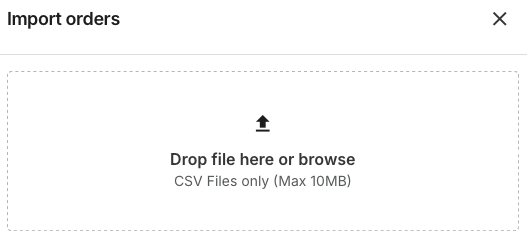
If the file is valid, you will see this pop up on the box telling you that the CSV is ready to import

Press Import CSV to start the import
If successful, you will see this message pop up

An email will be sent to your registered email address once the import has completed. This email contains a report of the successful and failed orders. And contains a download link which will show you why any of the imports have failed (if they have failed).
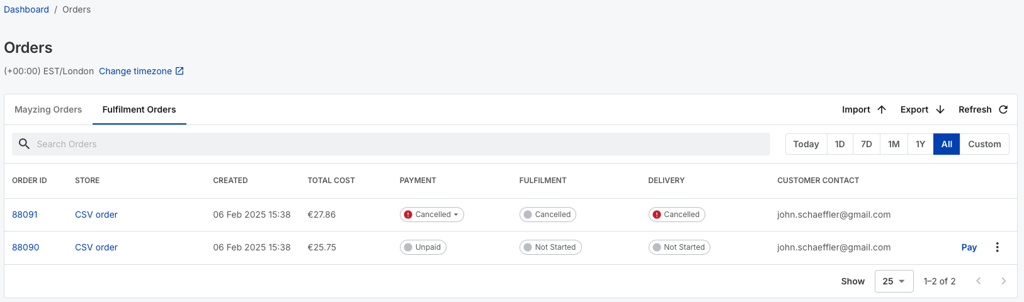
Once the import is completed, you will see that the orders have now been populated on your order table. At this point the orders will be in an unpaid status.
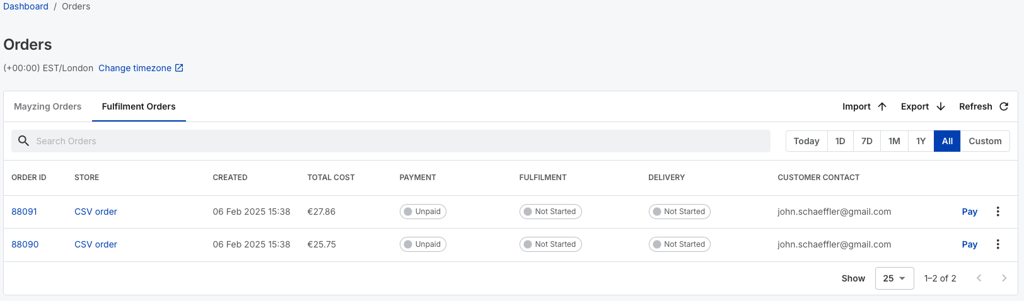
If you want to cancel the order, click on the 3 dots, the cancel order button will appear, click on this button to cancel the order. It will pop up a confirmation box to check whether you really want to cancel the order. Doing so changes your order status to Cancelled, and will require it to be imported again.
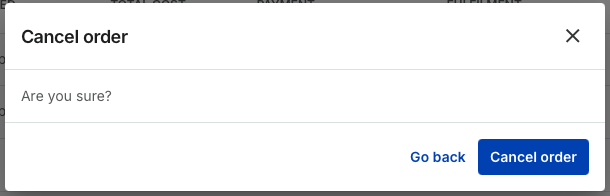
If you confirm the cancellation, you will see a confirmation message pop up
Click on the pay button if you are ready to pay for the order.
You will see the update on your order table confirming the status of your current Fulfilment Orders