Log in to the Mayzing dashboard https://dashboard.mayzing.com
In the left sided navigation select All Stores.
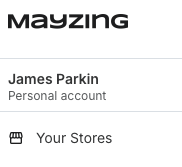
Select the store you wish to hide a product from
In the left sided navigation panel select Campaigns.
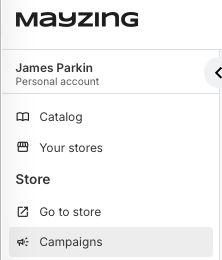
You will now see a list of all your campaigns.
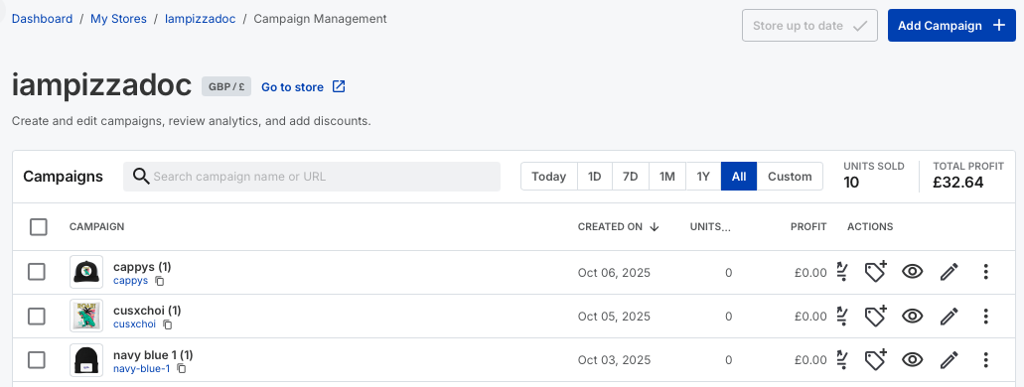
Find the campaign you wish to hide from your store
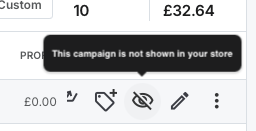
You can hover over the Eye symbol on the product and see the current status.
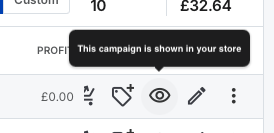
To hide the product from your store click on the Eye. The product will change to the eye with a line through it indicating it is no longer visible. Hovering over the eye symbol confirms that it is marked to be hidden.
Finally to make the change, you will need to publish your changes.
To do this, Press the publish changes button.
You will get a confirmation message advising you that it has been published.

To unhide the product in the Mayzing dashboard click the eye again for the hidden product, then publish the changes. The product will be visible in your store.
