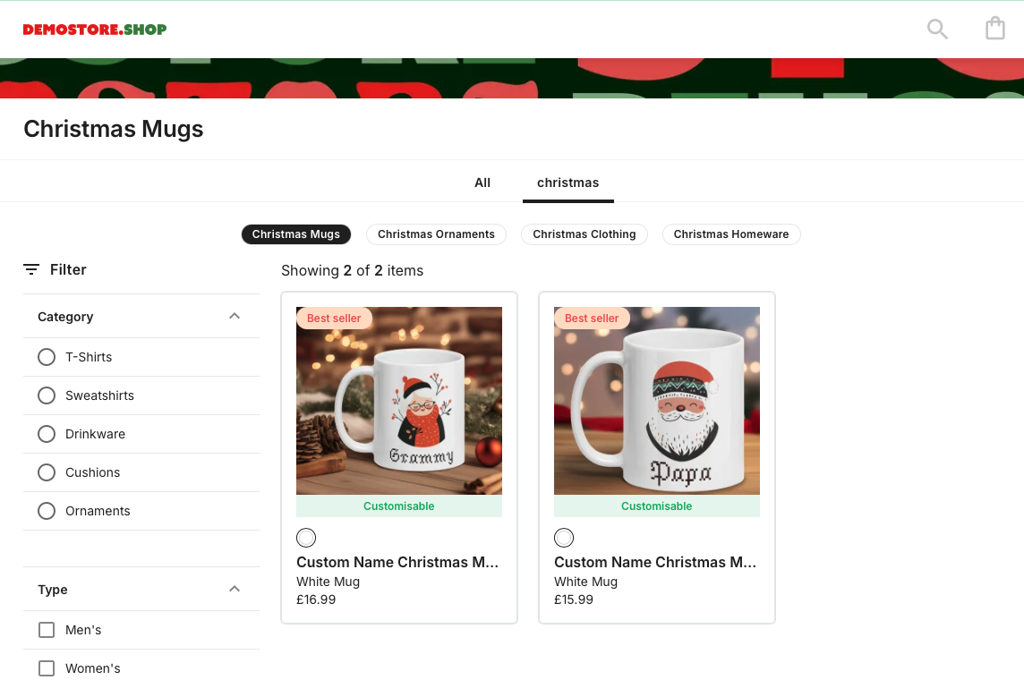
Go to dashboard.mayzing.com and click on the store you wish to add the sub-collection to.
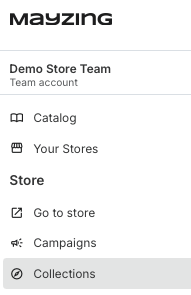
On the left hand nav bar, click on collections.
Open image-20250219-131658.png
Let's start by clearing out the campaigns we added in the collections tutorial. You can do this by pressing the delete icon next to each campaign.
Now, next to the collection we previously created. Click the Plus button to add a new sub-collection.
Open image-20250304-114433.png

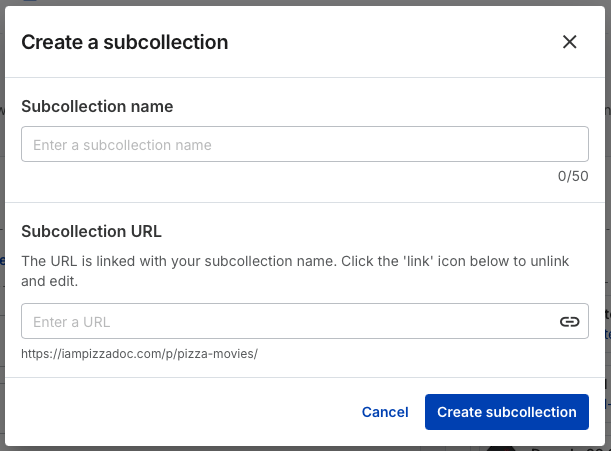
Give the sub-collection a name, for this demo we’ll be creating 4 sub-collections.
Open image-20250304-112546.png
Now all of the sub-collections have been created, lets add some campaigns to each collection.
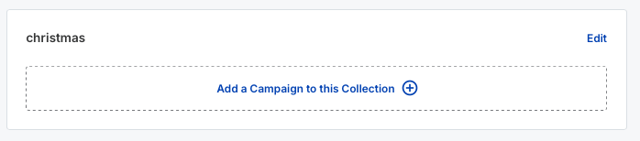
Click the sub-collection you want to add campaigns to, and on the right hand side of the screen, click add a campaign to this collection.
Open image-20250219-131906.png
Find the campaigns you want to add to the sub-collection, and click the check box for each one. You can use the search box at the top if you want to narrow down your search.
Open image-20250304-112836.png
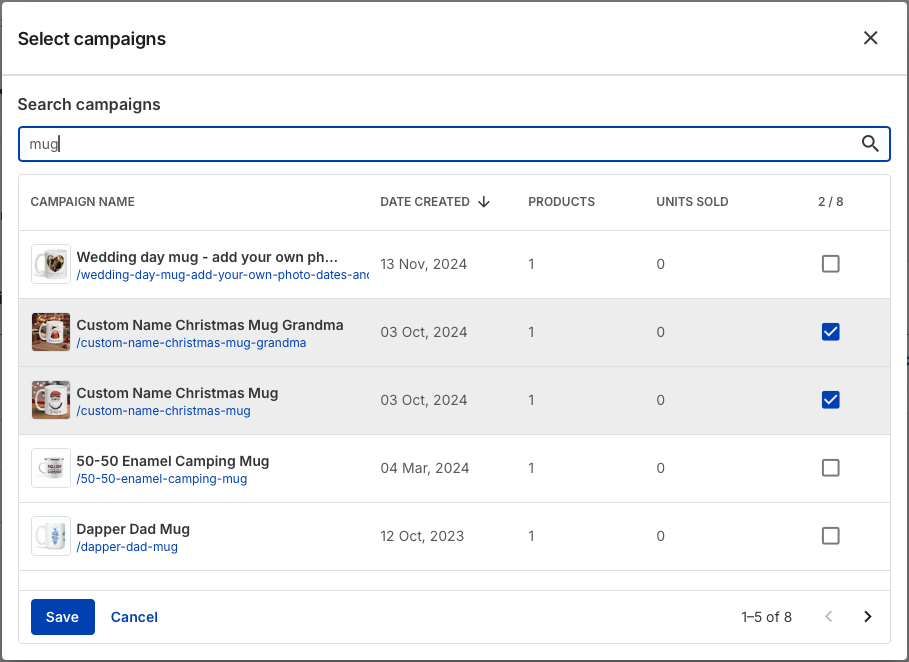
Once you have added all the campaigns you want to this sub-collection, press the save button.
Open image-20250219-132057.png

You can see all of the campaigns added to the sub-collection.
Open image-20250304-112905.png
If you are happy with this, press Publish changes.
Open image-20250219-132240.png
Once the publish has completed, you can go to your store, click on the collection and you’ll see the sub-collections have been added to the storefront. Click on these and you can see all of the campaigns are added inside.
Open image-20250304-113605.png