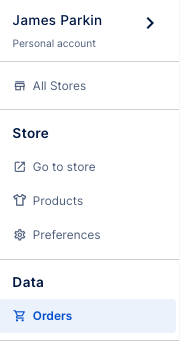
In your Mayzing dashboard, on the left Navigation panel, click on Orders.
You will be taken to your Orders Table where you will be able to see if you have any new orders.
To pay for the order go to the Mayzing Dashboard - https://dashboard.mayzing.com
On the left Navigation panel click on Orders.
On the orders table click on Fulfilment Orders.
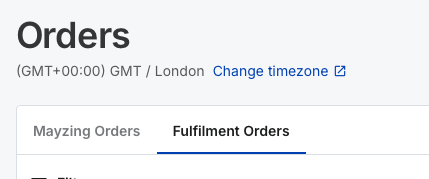
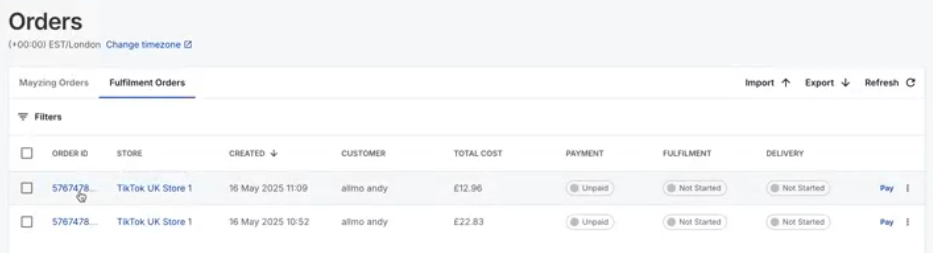
Your Orders Table will now show all of your Fulfilment orders, and the status of those orders.
If this is the first order you are paying for, you will need to add a payment method. To add a payment method, you can use this guide.
Click on the order you want to pay for.
Press the Pay button.
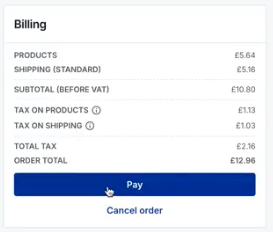
Select your payment method, and the payment will process. You will get a Payment Successful message if the payment is successful.
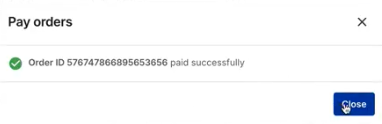
You will be returned to the Orders Table, and you will be able to see that the payment has now been marked as Paid.
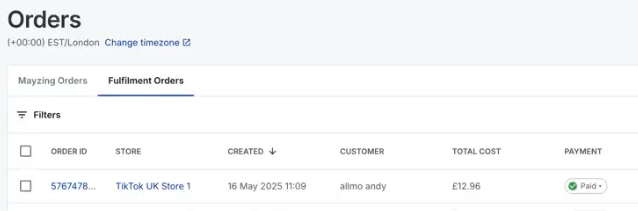
You can click on the Order ID if you wish to know more details about that order. Such as Estimated Delivery and Tracking Links (When they become available).
The order will now be passed to our printers for fulfilment.
You do not need to do anything else for this process to complete.
If you would like to avoid having to manually approve and pay for your customers orders each time, you can choose to activate automatic approval.
Go to your store, and click preferences
Scroll down to the Order Approval section
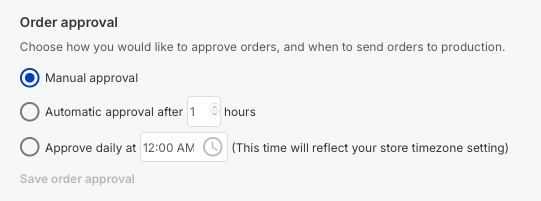
You can choose to;
Leave it as Manual Approval. This will require you to come in to the Mayzing dashboard each time you have a sale, to push the order through
Automatically approve after X hours. This will wait until the time you have set has elapsed, and automatically approve the order and charge the card you set in steps 8, 9 & 10.
Approve daily at XX:XX. This will automatically push through all orders you have received at a specific time you specify. This will then automatically charge the card you set in steps 8, 9 & 10
Once you have selected the option you want, Save order approval will be highlighted in blue. Click this to save.
All future orders will use now this order approval option.
If you wish to change this preference in the future, follow the same steps.
