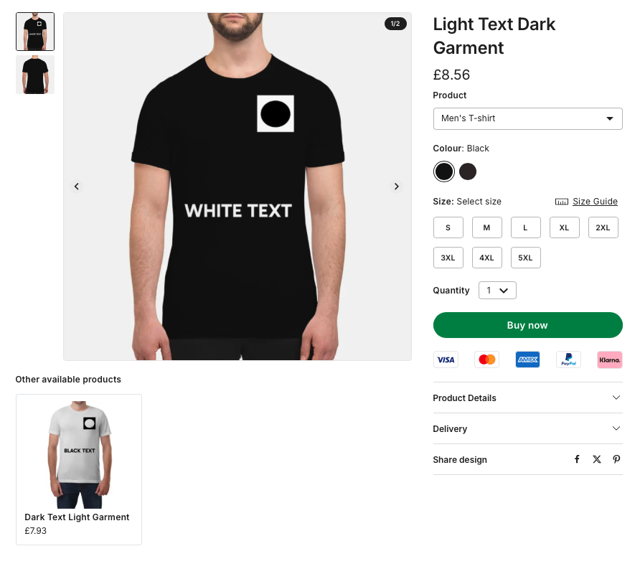
There is a way to do this within a single campaign, removing the need to create one campaign for white text and a second campaign for black text.
The way to do this is explained below.
Log in to dashboard.mayzing.com
On the left hand navigation click on campaigns.
Press Add Campaign.
Give the new campaign a name, and press add products.
Select the check box for the product you wish to create variants of and press Start designing.
On the next screen press continue.
Firstly we will create the light products that you want to have the dark text or image on.
Press image layer
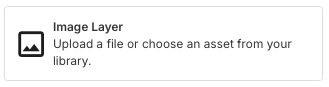
Either upload the new image or go to your library and select the image you want, and press choose image.
Now scale the image, and place it where you want to on the garment.
If you wish to add text also go to the next step. If you only wish to add the image jump to step 15
Click Add another layer
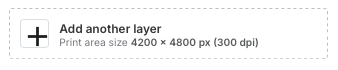
Choose a text layer
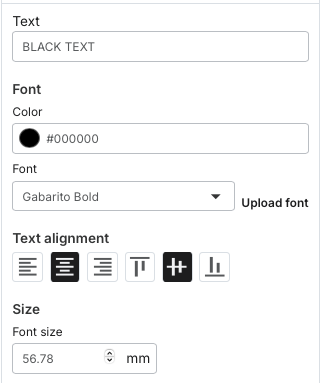
Fill in the text layer details as below
Text - What you wish the text to say
Colour - What colour you want the text to be
Font - The font you wish to use (you can upload your own fonts if you want to)
Allignment - Whether you want it centred horizontally/vertically etc
Size - How large you want the text to appear on the garment
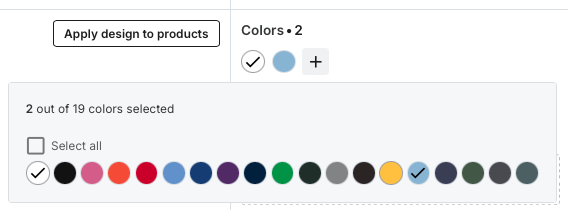
In the top right click on the + next to colours which opens the colour selector. Select the colours you wish to have dark text on them, and then click back on the main part of the screen
You have now created the 1st variant of the product.
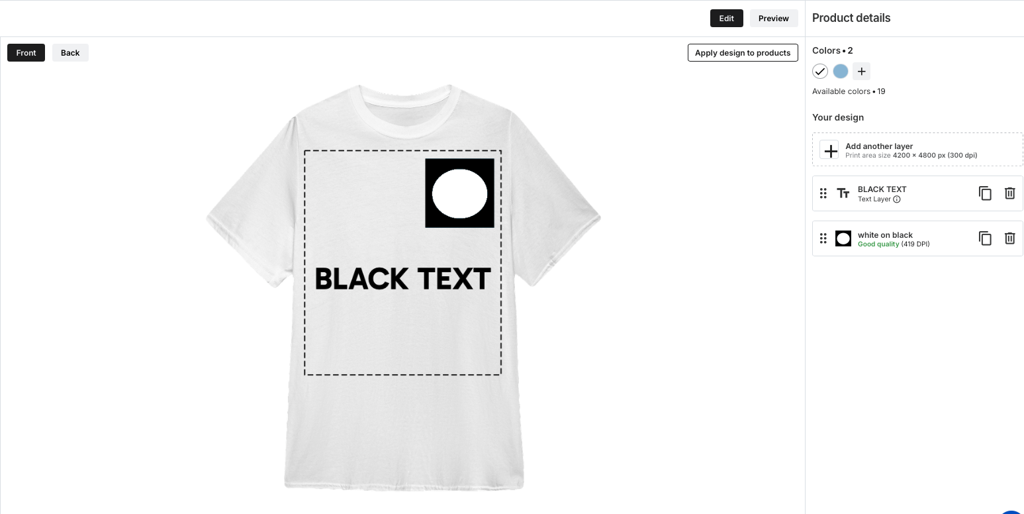
Now to create the 2nd variant of the product
In the bottom left of the screen, click add product
Select the same garment again and press continue
On the next screen click Add products
On the left hand side of the screen, ensure you are now modifying the 2nd product
Add an image layer, but this time, upload the image you want to be displayed on the darker coloured products.
Add a text layer again, but this time change the colour to white, or a lighter colour
On the colours section for the garments, add the dark colours you want. Remember to remove the white / light garments
You now have 2 variants of the same product in one campaign
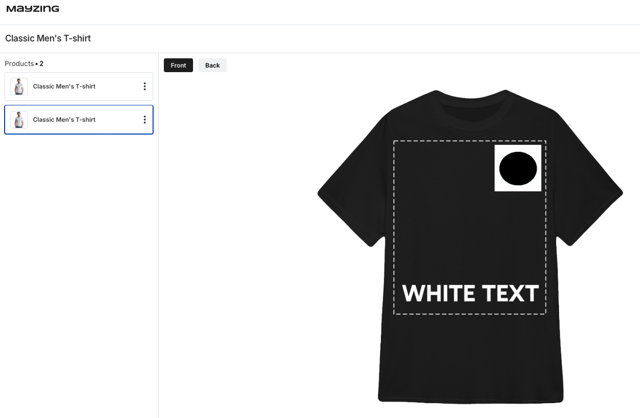
Click Continue to pricing, and choose your pricing
Click continue to review, choose your mockups, name the product, add a description if you like, and press save and continue
On the next screen click publish changes, which will publish the new campaign to your store.
Now when you go to your store, in the same campaign, you’ll be able to see both variants, starting with variant 1
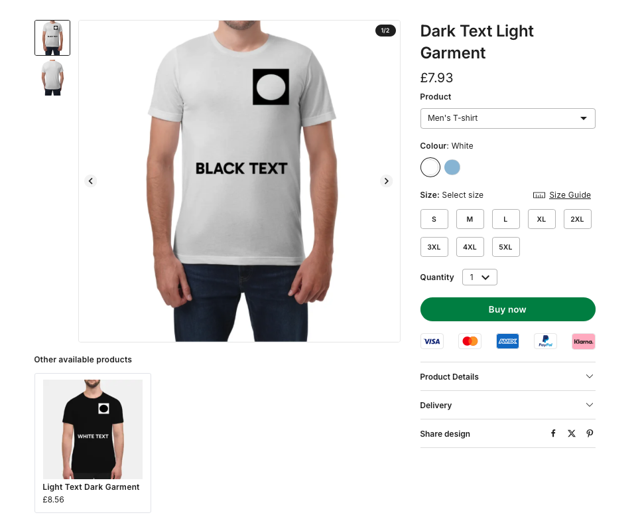
Clicking on the other product in the Other available products section brings up variant 2, and puts variant one in the Other available products area