Login to your seller dashboard https://dashboard.mayzing.com
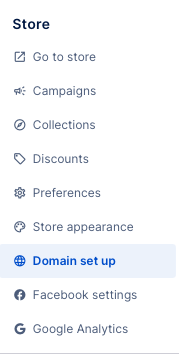
On the left side navigation, click on domain setup.
If your domain provider is in the below list, you will be able to use our Automated domain setup service, which will enter all your DNS entries for you.
123-reg
Arsys
IONOS
Domain.com
Name.com
Namecheap
OpenSrs
Registro
Xneelo
Amazon Route 53
Bluehost
Cloudflare
Crazy Domains
Digital Ocean
DNSimple
Google Domains
Dreamhost
Gandi
GoDaddyHostinger
Hover
Iwantmyname
Linod
NameBright
NameSilo
Netlify
Network Solutions
OVH Global
Shopfiy
Siteground
Squarespace
Strato
Wix
Wordpress
Start by putting your domain name in the custom domain name box. IMPORTANT, you should not put in the www part of your domain name. Now press the connect button.
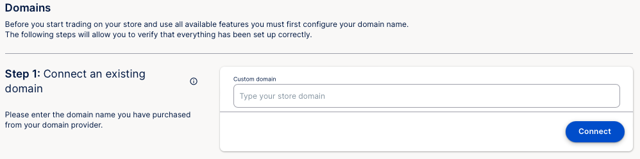
Our platform will then determine who your domain provider is, to see whether our automated domain service is available for you. If it is not, you will need to manually make the changes to your domain.
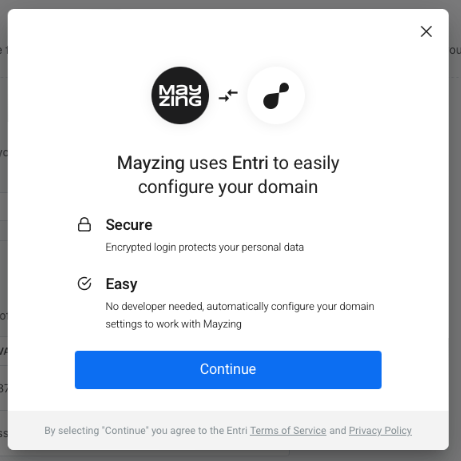
When you see the below box, press continue to start the process. If this box does not appear, your domain provider is not supported for automatic configuration. You will need to manually add the records. A tutorial for this can be found here.
It will then continue through a series of checks.
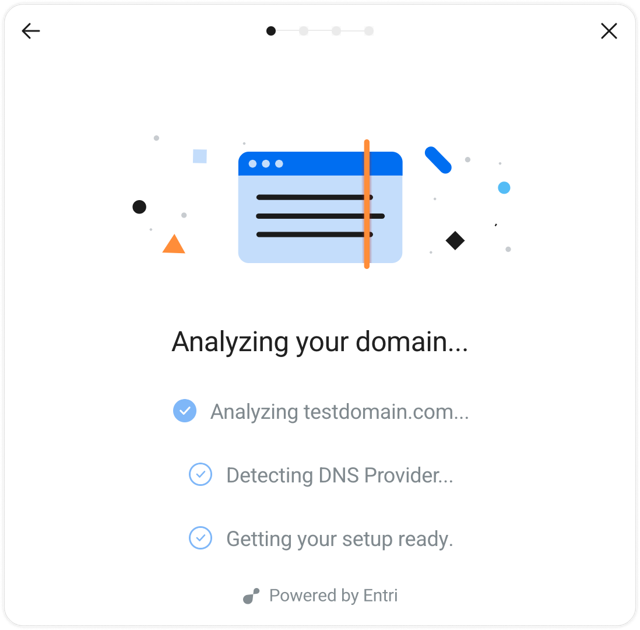
If it has detected that the automated connection service is available to you. It will then ask you to authenticate with your domain provider. This is so it can apply the records needed to connect your domain to our platform.
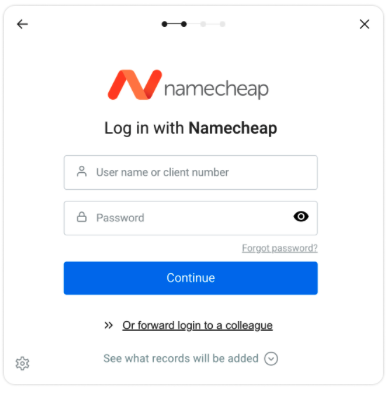
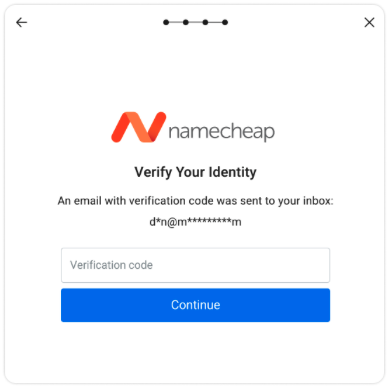
You may be asked for some additional security, such as a code they send to you, or a number generated for you on an authenticator app. This will depend on the level of security you have set up with your provider.
Once you have passed this step it will finalise the record amendment for you. And you will get a confirmation message once it has successfully completed.
Open 646729641cb0d57e68087be2_76.jpeg
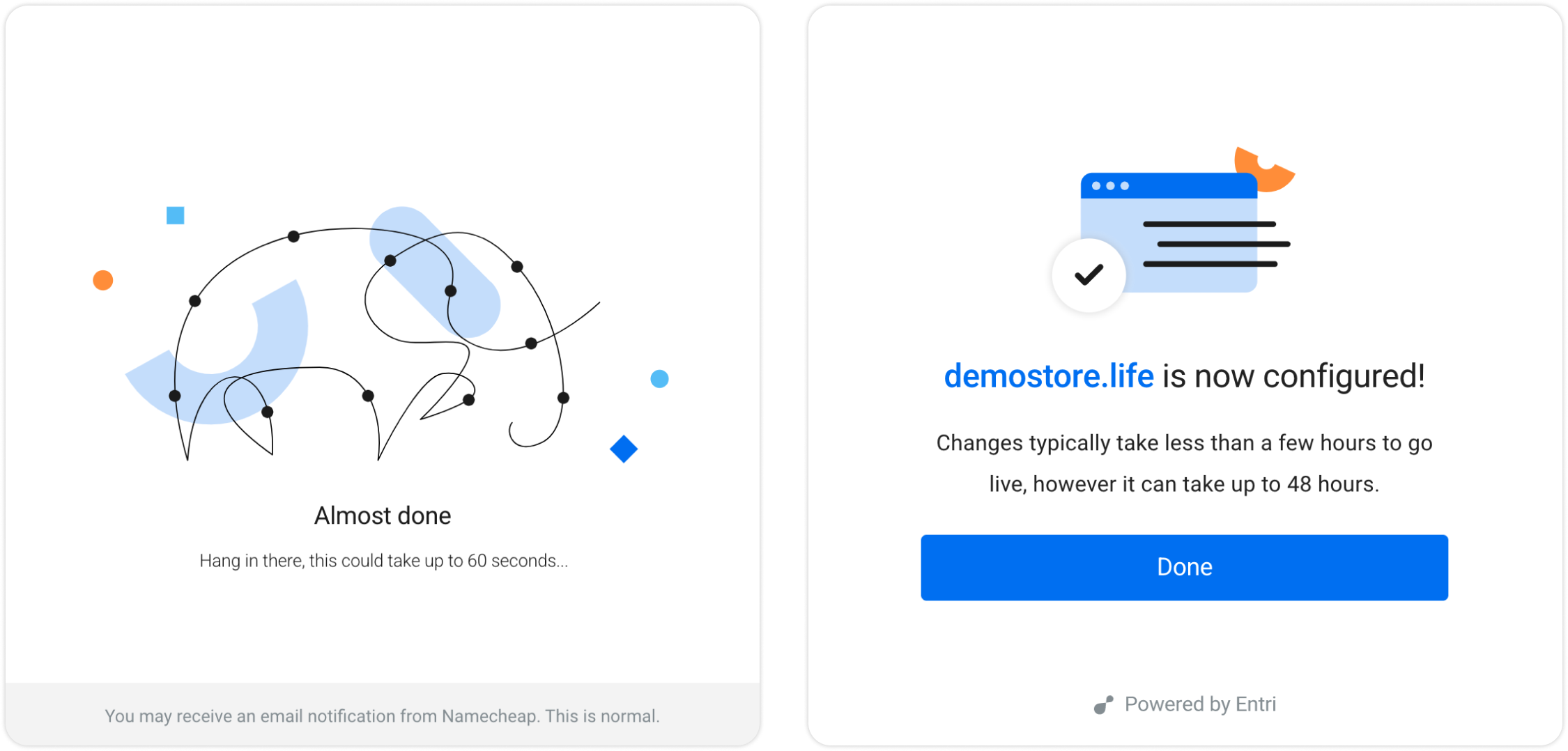
You should now check with your provider that the setting changes have been completed. There should be 9 records in total. They should be the same as below except for the records shown in red which will be unique to you.
Type | Host | Value | Priority |
A | @ | 37.16.11.30 |
|
CNAME | www | ssl.moteefe.app |
|
CNAME | em1111 |
| |
CNAME | s1._domainkey |
| |
CNAME | s2._domainkey |
| |
TXT | @ | v=spf1 mx include:spf.improvmx.com include:mail.zendesk.com ~all |
|
TXT | zendeskverification | 7012ret122f2f5b1 |
|
MX | @ | 10 | |
MX | @ | 20 |
If there are any additional records, then you will need to delete them. If this is not done it can impact the performance and availability of your store. It is very important to check that there is only one A Record which must point to 37.16.11.30. And one CNAME WWW record which must point to ssl.moteefe.app. There will be other CNAME entries like the below. These should be left in.
Host | Type | Value |
emXXXX | CNAME | |
s2._domainkey | CNAME | |
s1._domainkey | CNAME |
