On the Mayzing dashboard, on the left hand navigation bar select Products.
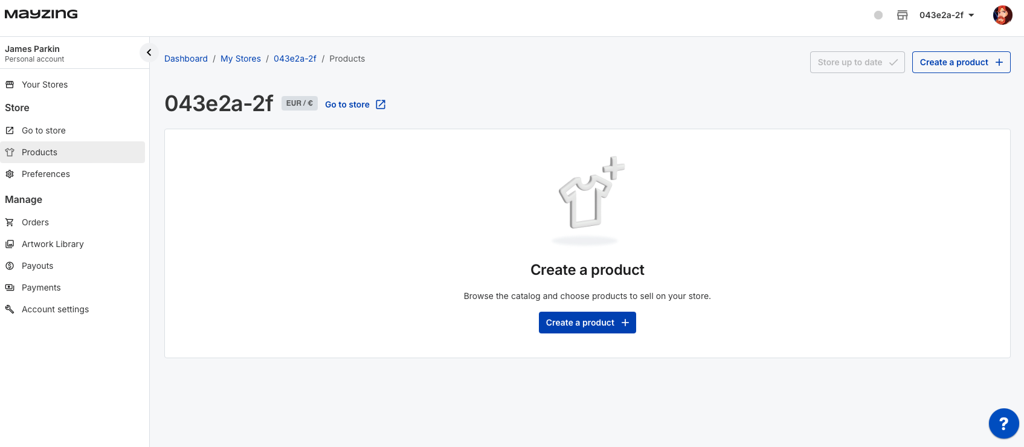
Then click on Create a product.

You will now be presented with the Mayzing product catalogue where you can select what type of products you want to build.
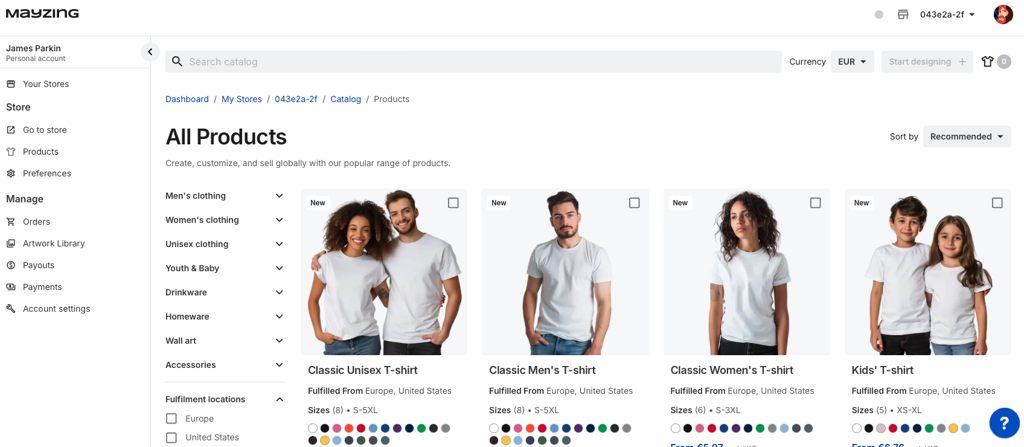
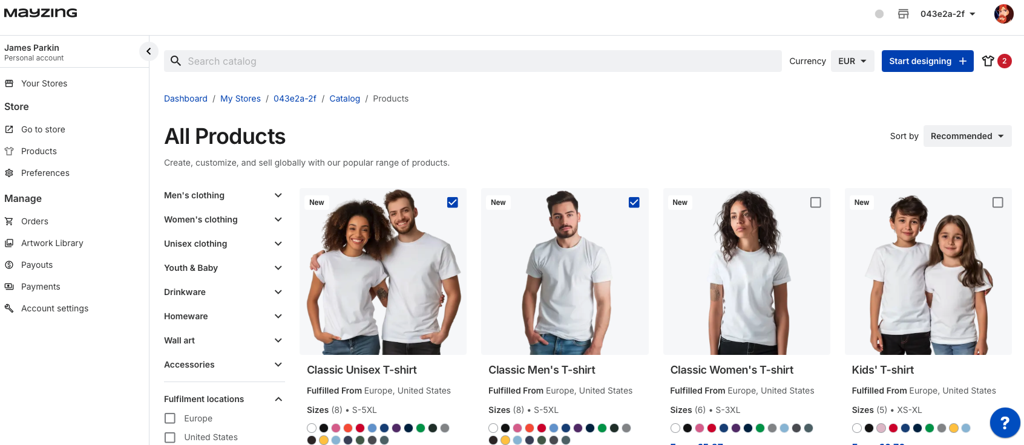
Select the products by clicking the check box for each one you want, and then press Start Designing.
You will now be on the screen where you can put your design on to a blank product.
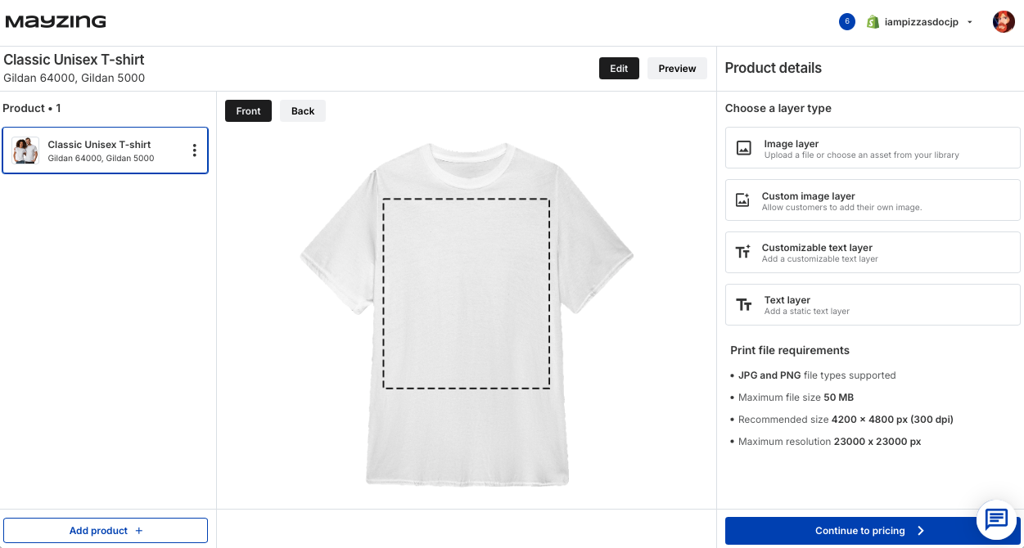
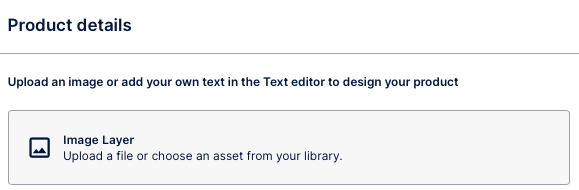
To upload an image from your machine click on the Image Layer button.
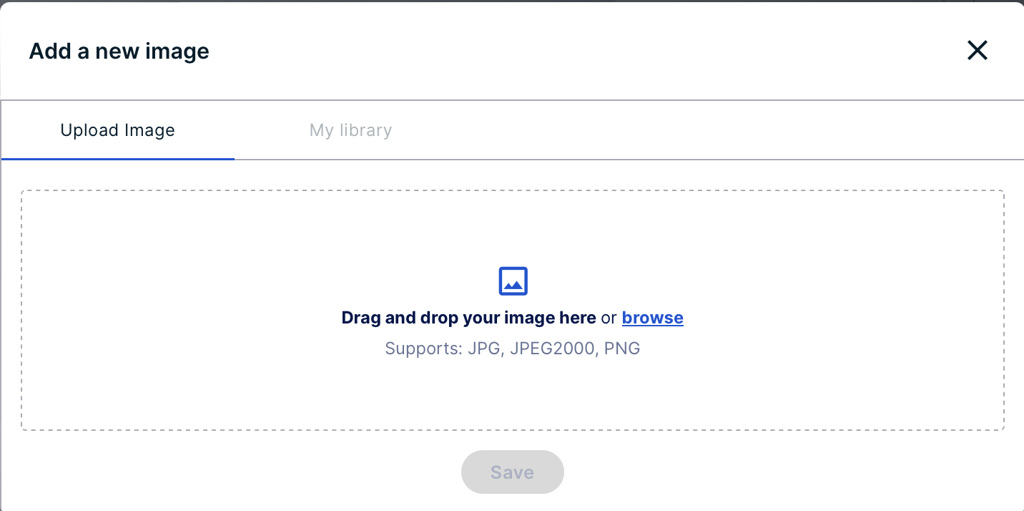
Drag and drop your image in to the next box or press the browse button if you want to browse to find your image.
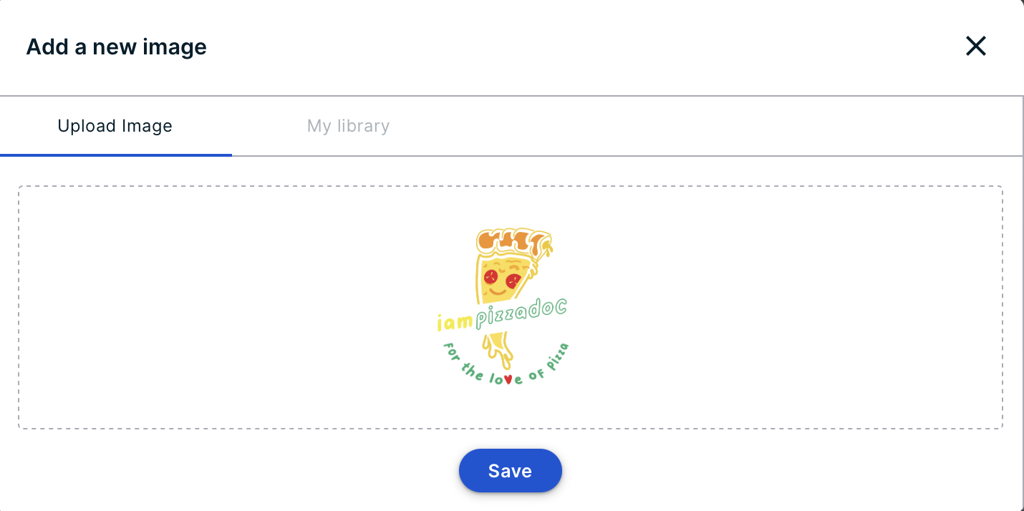
Once you have found / uploaded your image, you can press Save.
You can now scale the image to the size you wish, move the image around the printable area, to change the orientation of your image.
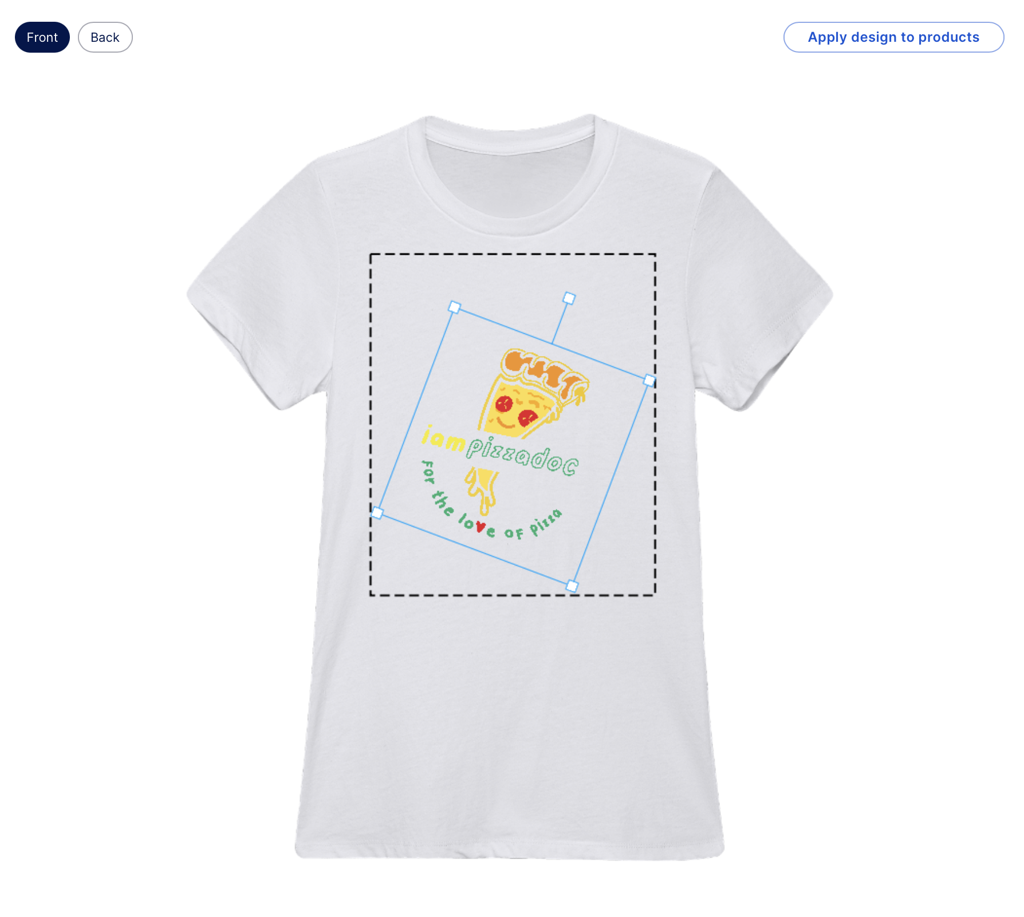
Once you are happy with the placement, you can add another layer, either an image, a custom image, a text layer or a custom text layer
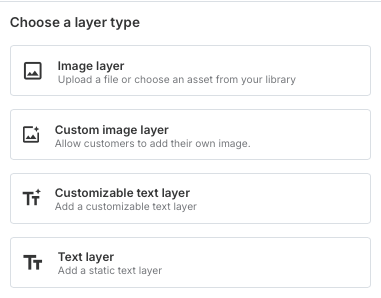
Or you can go to the back of the item (if available) and add something there.
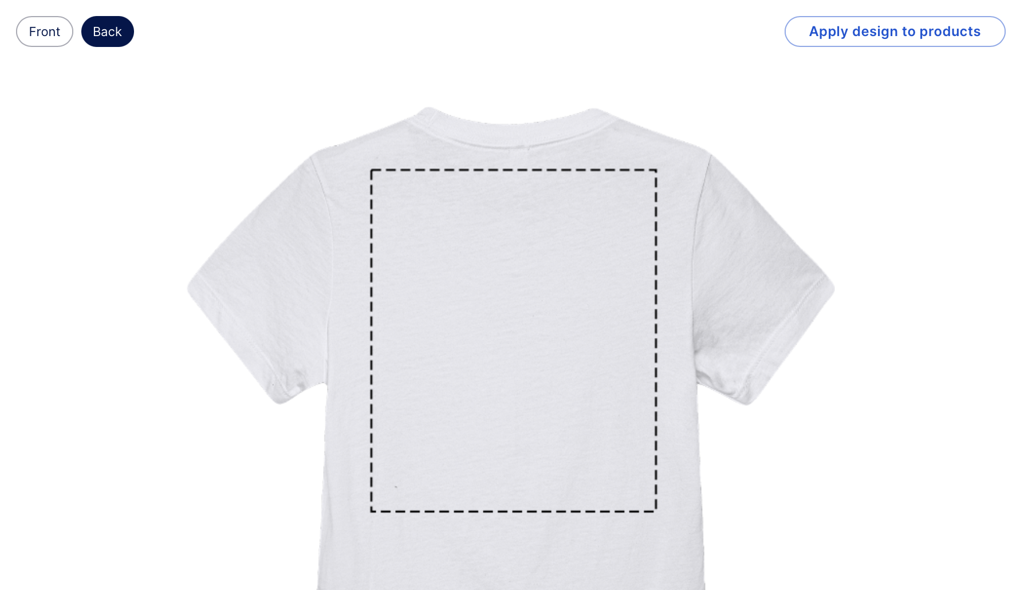
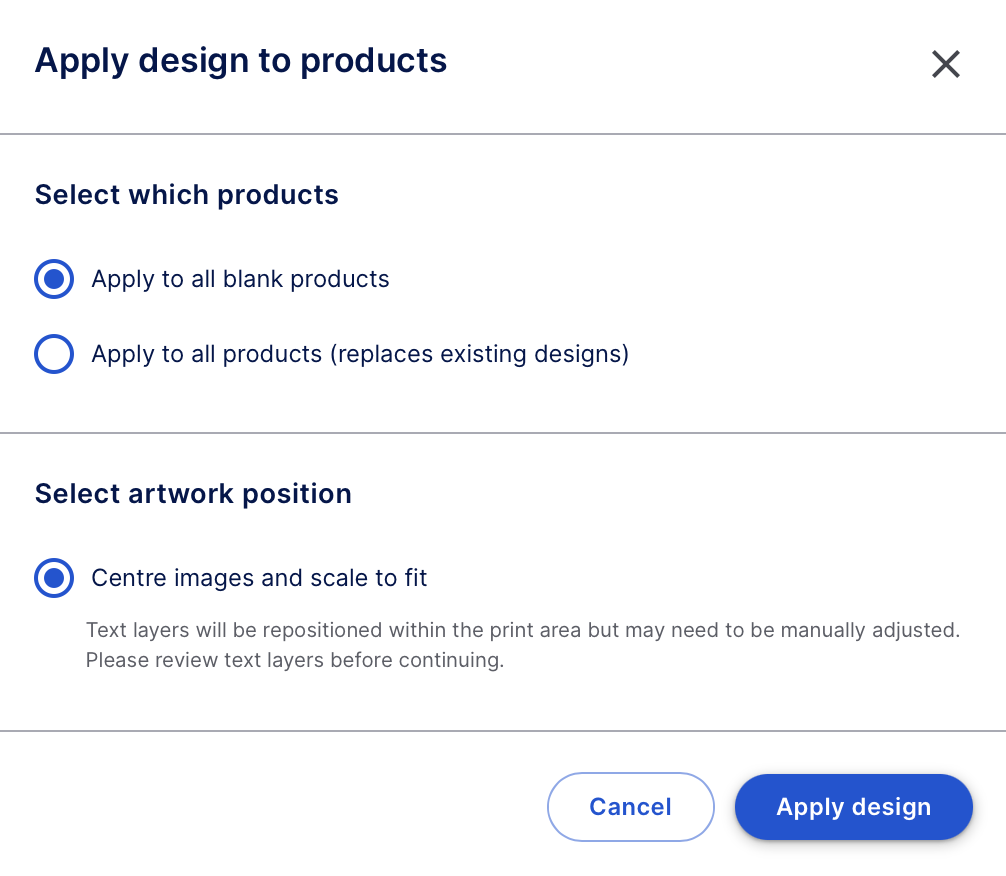
If you wish to apply the same design to all of your garments, press the Apply Design to Products.

Select whether to add to all products, or just blank products, and hit Apply Design.
When you are finished with the design, press continue to pricing.

Set the pricing you wish the products to be sold at.
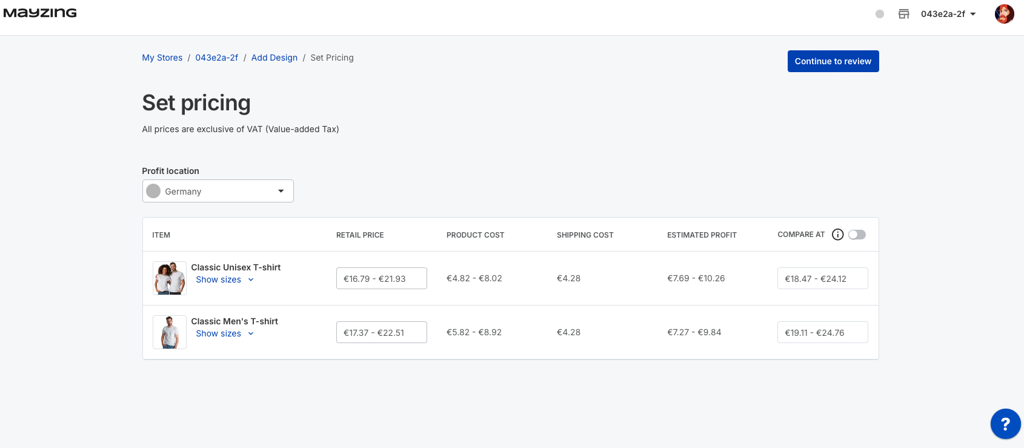
When you have set all the prices, press Continue to Review.

On the next screen you can give your products a more friendly name, and choose the mockups you wish to use.
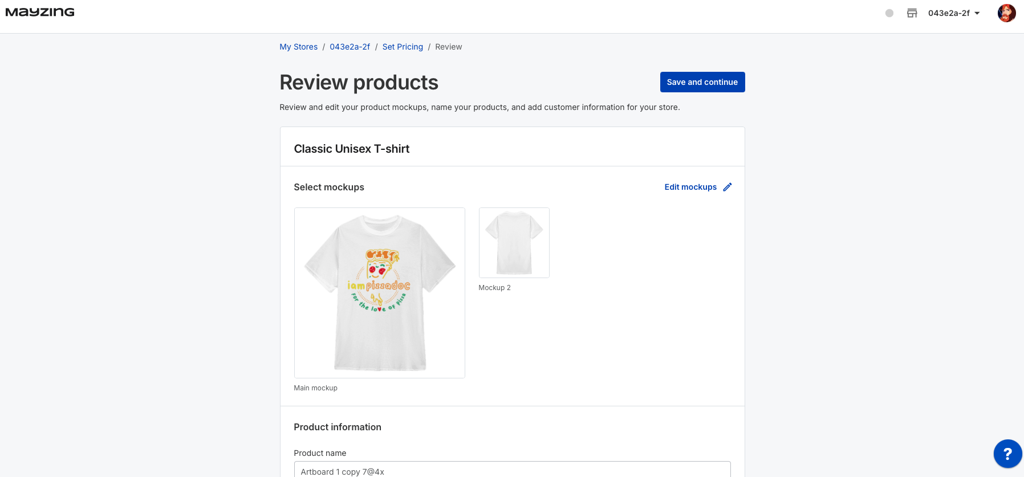
Once you have named them all, press Save and Continue.

You will get a green confirmation message that everything has saved successfully.

You will be have been returned to the product screen, when you will be able to see the status of the products in your store.
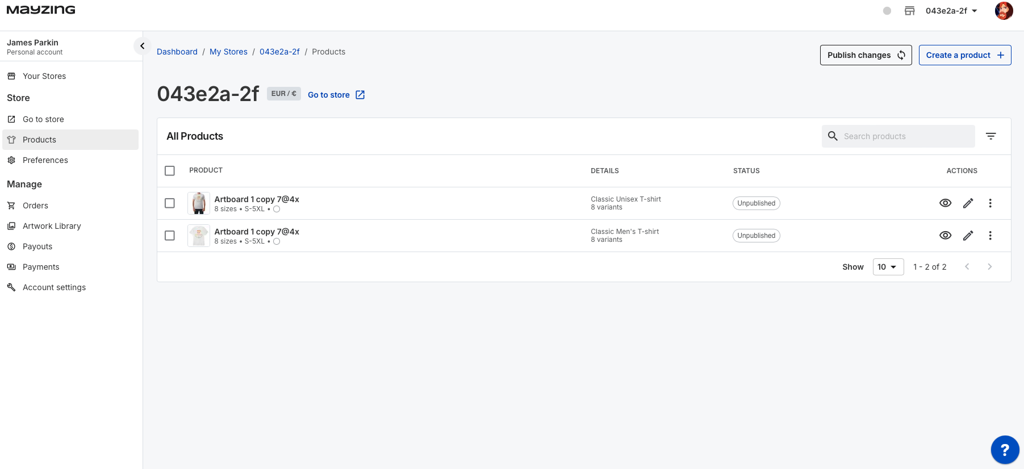
To set the products live in your Shopify store, you need to publish them. To do this press the Publish Changes button.

You will get a confirmation message to say that the changes have been published and may take 1 minute to appear on your store

Once this has completed the status is the top right hand corner will show Store Up To Date.
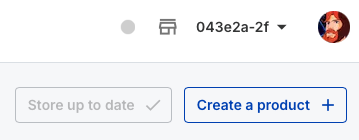
You will get a confirmation message to say that your changes have successfully published.

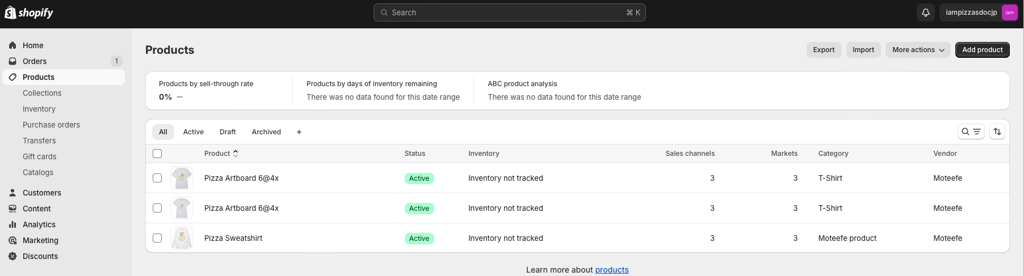
Return to your Shopify dashboard, and click on products. You should now see your published products. You may need to refresh your browser.
To check your store, within Shopify, on the left hand bar, hover over Online Store, and click on the Eye that appears.
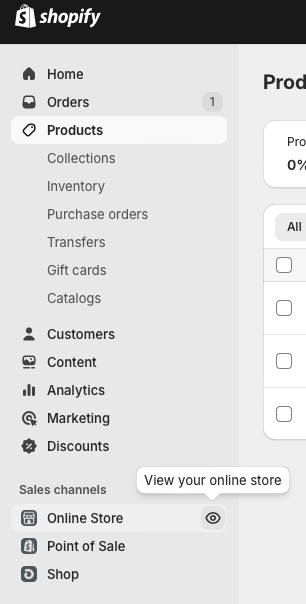
This will take you to your Shopify Online Store.
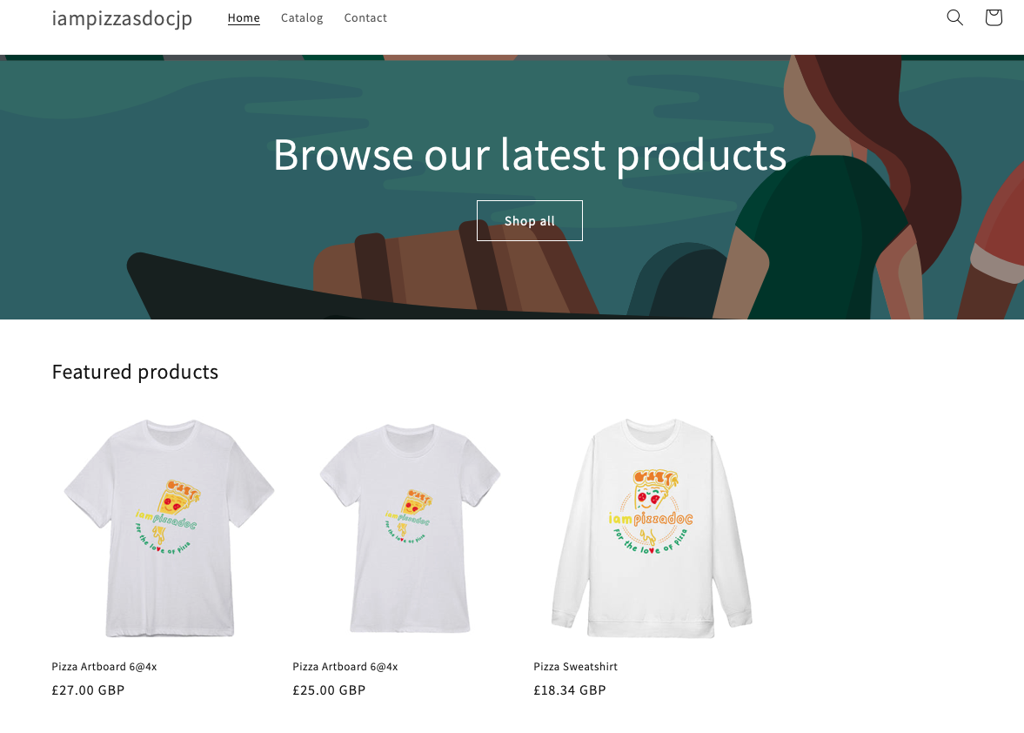
Congratulations, you are now ready to sell your merch.
