In the bottom left hand corner of your Shopify dashboard click on Settings.

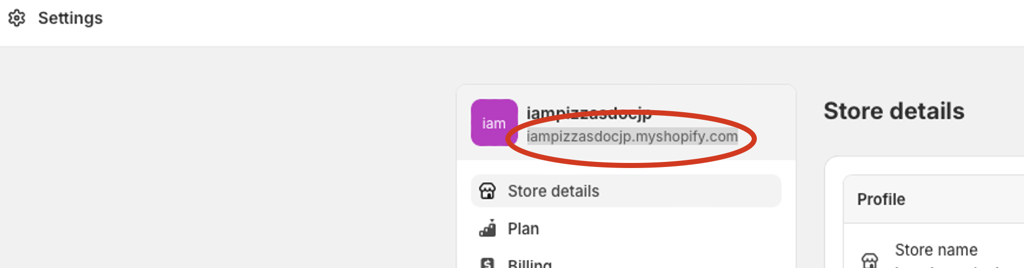
This will take you to the settings screen, where towards the top of the screen you can get the URL of your store (circled) you can copy this now. You’ll need it shortly. IMPORTANT - You need to use the permanent Shopify domain e.g. xxx.myshopify.com when connecting your store. Even if you have a custom domain pointing to your Shopify store.
Go to the Mayzing Dashboard https://dashboard.mayzing.com and log in.
It is important to decide here whether you want this set up as a personal store or a team store. If you want to be able to collaborate with other people and run the store as a team. You can follow this group of guides which will walk you through account & team management. Once you have created the team (if you are doing so) you can continue to step 5.
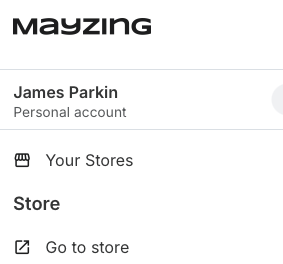
On the top of the left hand side, click on Your Stores.
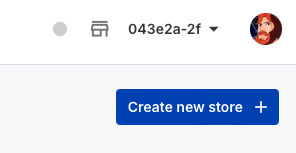
In the top right hand corner, click Create New Store.
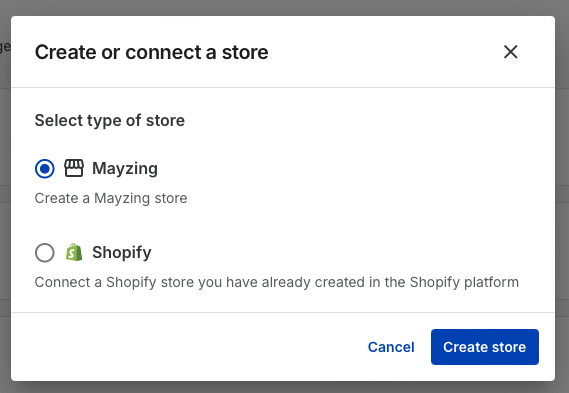
For type of store, select Shopify.
In the next screen, paste or enter the URL you copied in Step 2.
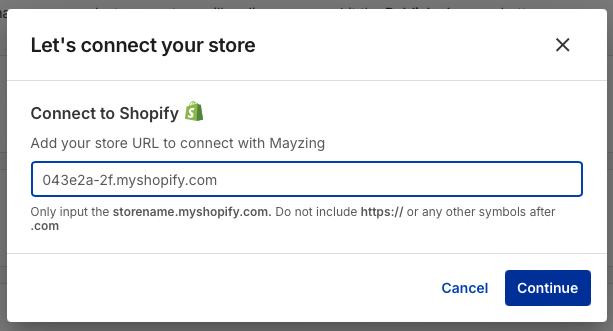
You will be redirected to the Shopify dashboard again. Where you will be prompted to install the Mayzing App.
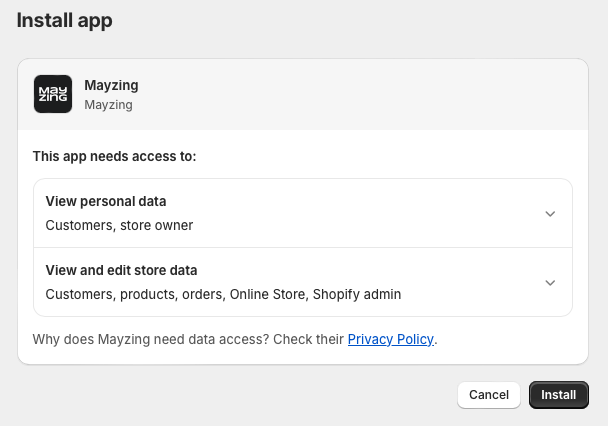
Press Install.
Congratulations your Shopify Store and Mayzing Store are now connected.
Finally, to ensure your shipping labels show the correct store name, in the left nav go to Preferences.
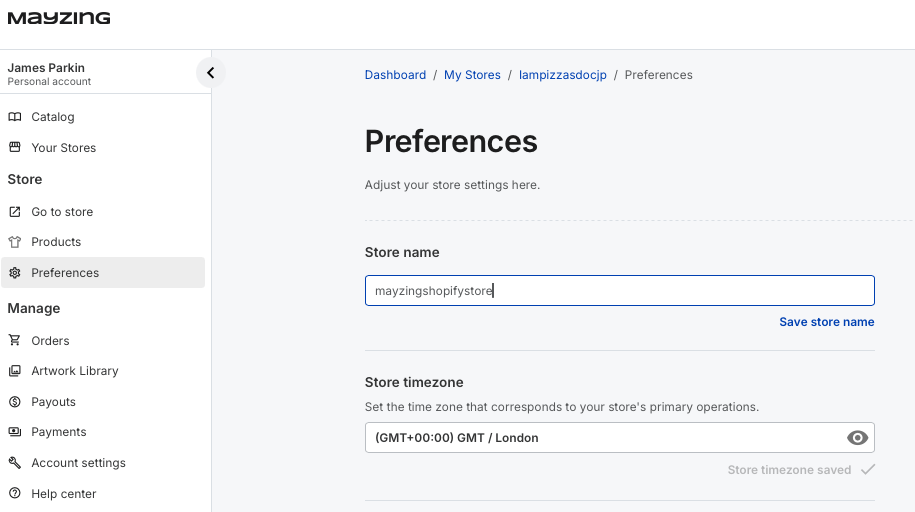
Enter the store name you wish to be displayed on the label, and press Save store name.
