Login to your seller dashboard https://dashboard.mayzing.com
Navigate to 'Campaigns' from the left-hand navigation menu and click Create a Campaign
A pop-up will appear, prompting you to provide a name and URL for your campaign. The URL will match the campaign name by default, but you can customise it. Each campaign URL must be unique within your store.
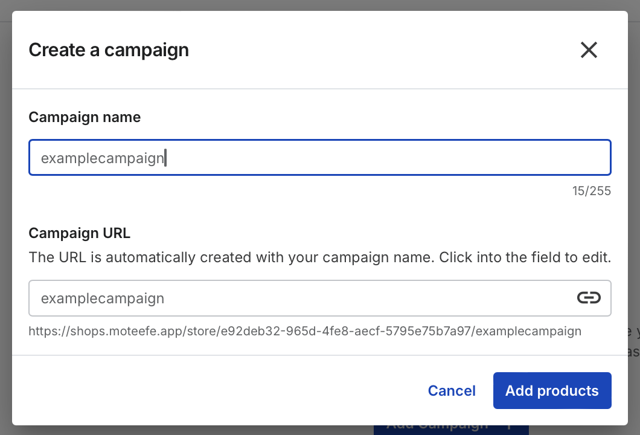
Once you have added a name and URL, click Add Products
You will see a popup message confirming that the campaign has been created successfully.

You will be taken to the next page, where you get to choose the products you wish to put your design on.
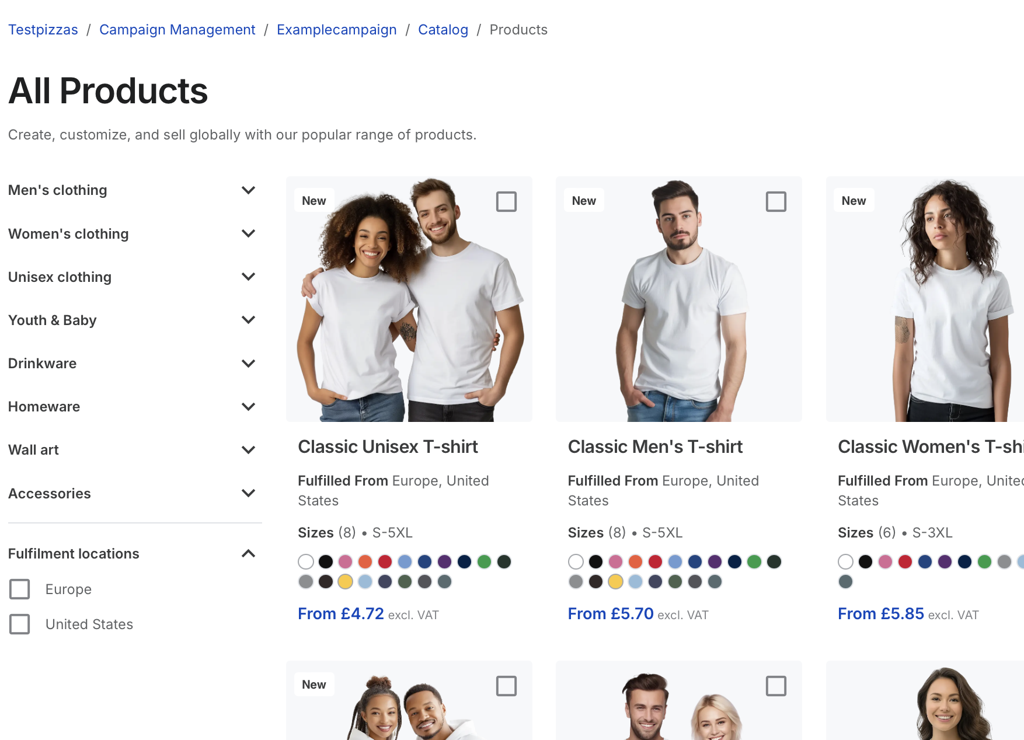
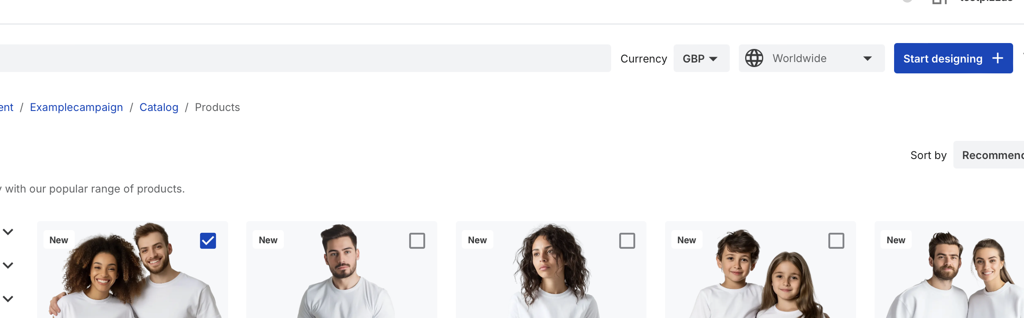
For the purpose of this document, we’ll select the Classic Unisex T-shirt. Fill in the checkbox next to the product, and then click the Start Designing button in the top right.
You are now presented with a blank design for the product you chose in the previous step. There are several options here for you to add to the product. But this guide is for adding a custom image to the product.
Click on the Custom Image Layer button.

You will see that the customizable text layer has been added to the mockup of the product.
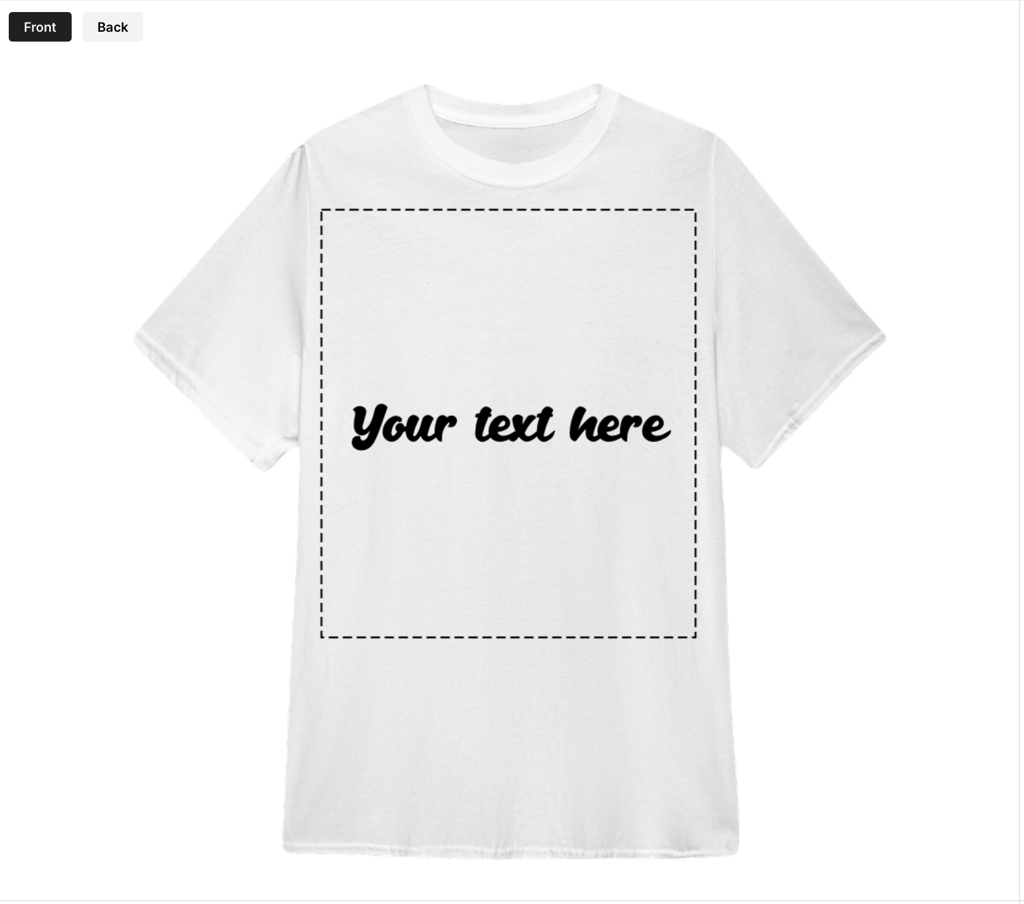
You are now able to drag and resize the text box until you are happy with the placement and size
On the right had side clicking on the Custom text layer will open up the options you have.
For the Customisable text placeholder, this is the text you would like to appear on your mockup (prior to the customer making changes)

For the Create a prompt for your buyers, this is the text you would like to appear to advise your customers what to do. for example add your pets name here. You can choose to toggle this off or on.

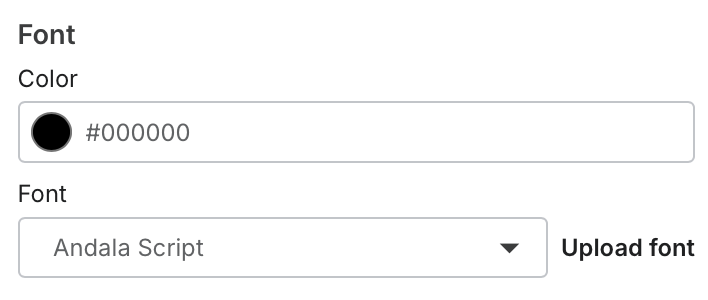
For Font Color and Font, this allows your choose the color and font you want to appear on the product. You can upload your own font at this point by clicking Upload Font. It's important to think about the color of your product and the color of your text at this point to avoid combinations such as black on black.
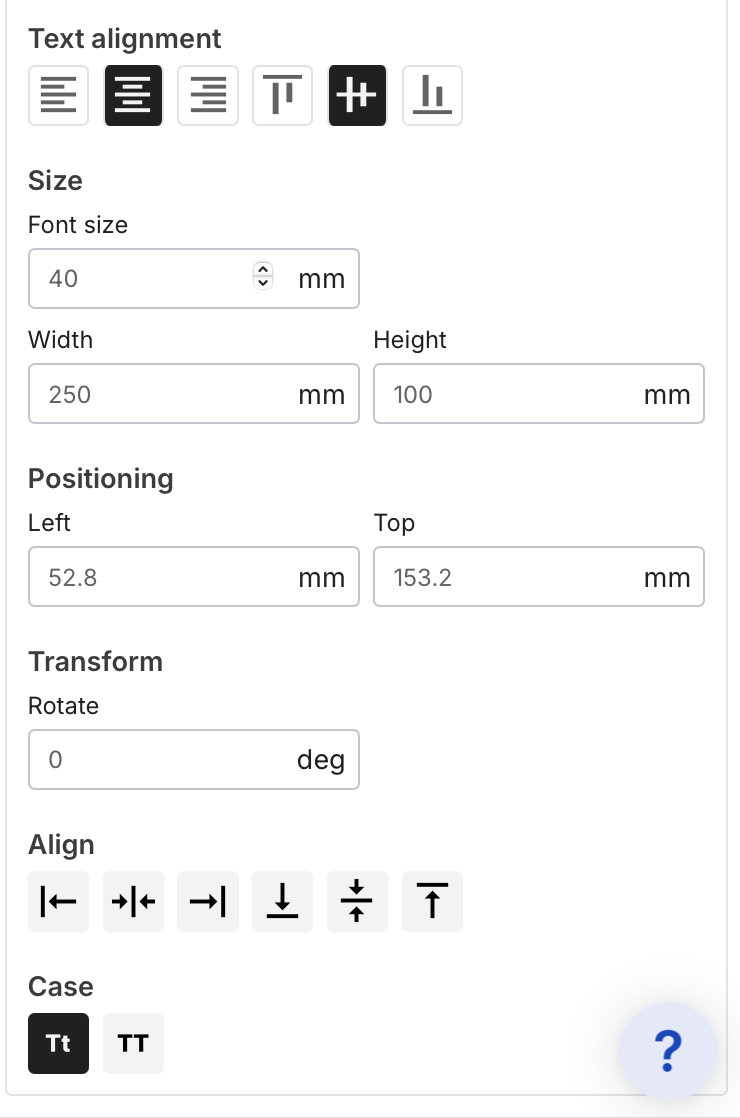
Size / Width / Positioning / Transform / Align / Case can all be adjusted to get the text to appear exactly how and where you want.
Once you are happy, press continue to pricing.

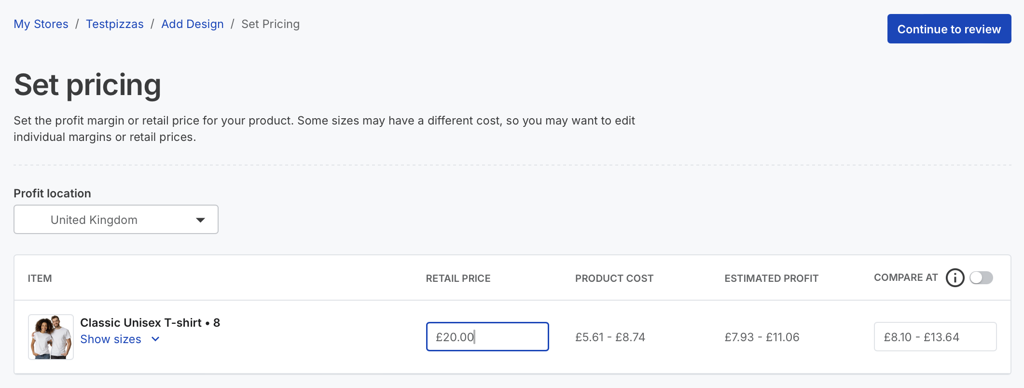
On the next screen, you can choose your retail price, which is the price your buyers will see on the store. You will not be able to set a price cheaper than the production costs of the product. Set it at a price you think people will buy at, while still making you a profit. Once you have set the price, press Continue to review.
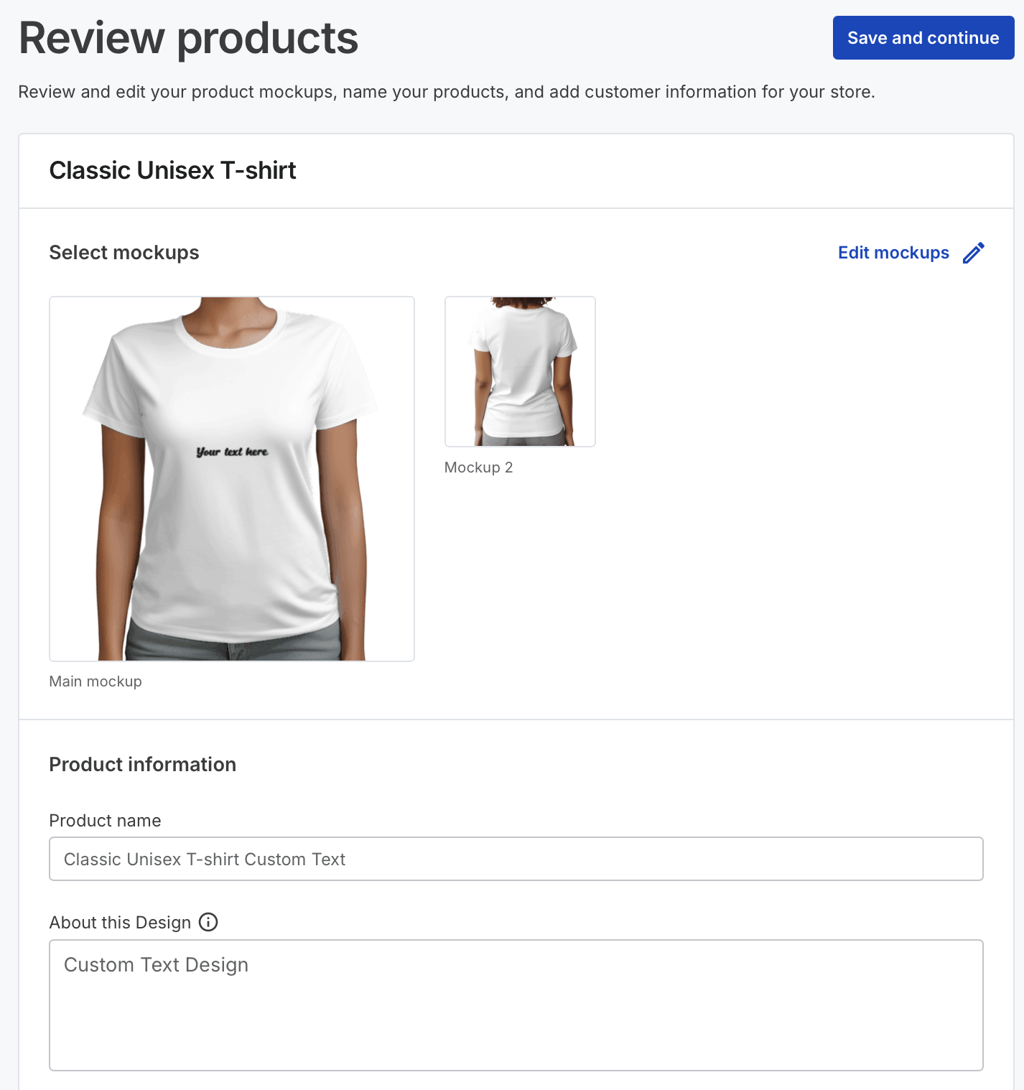
This is the screen where you can finalise how your product will look in your store.
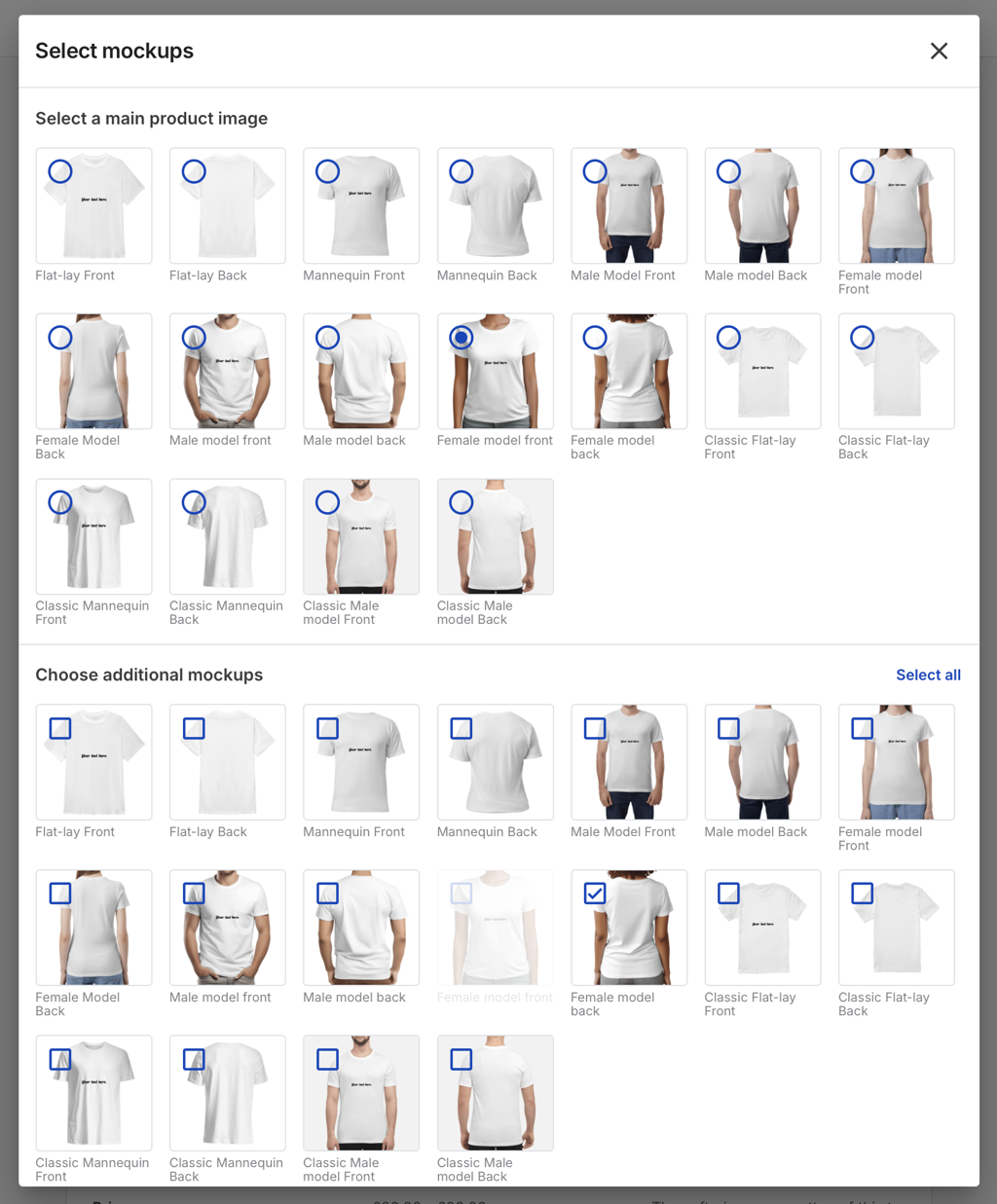
Edit Mockups allows you to choose from all of our mockup, click on edit mockups and select your main mockup, and any others you would like to show. And press save selection.
You will be returned to the previous screen. Give your product a name and a description, and then press save and continue.
You will get a popup to say it has been created successfully.

The only thing left to do now, is to publish your changes to your store. Press Publish changes in the top right of your screen.
You will get another confirmation

After a minute you will see the status changes to Store up to date.
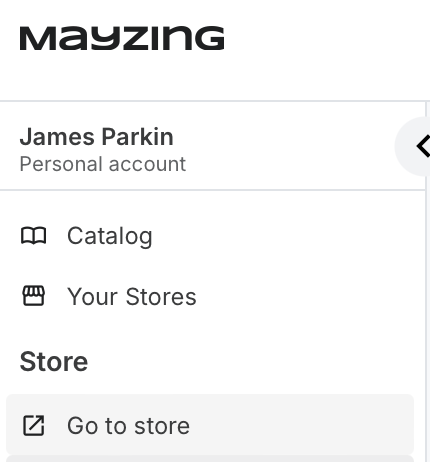
To see your new product in your store click on Go to store in the left navigation.
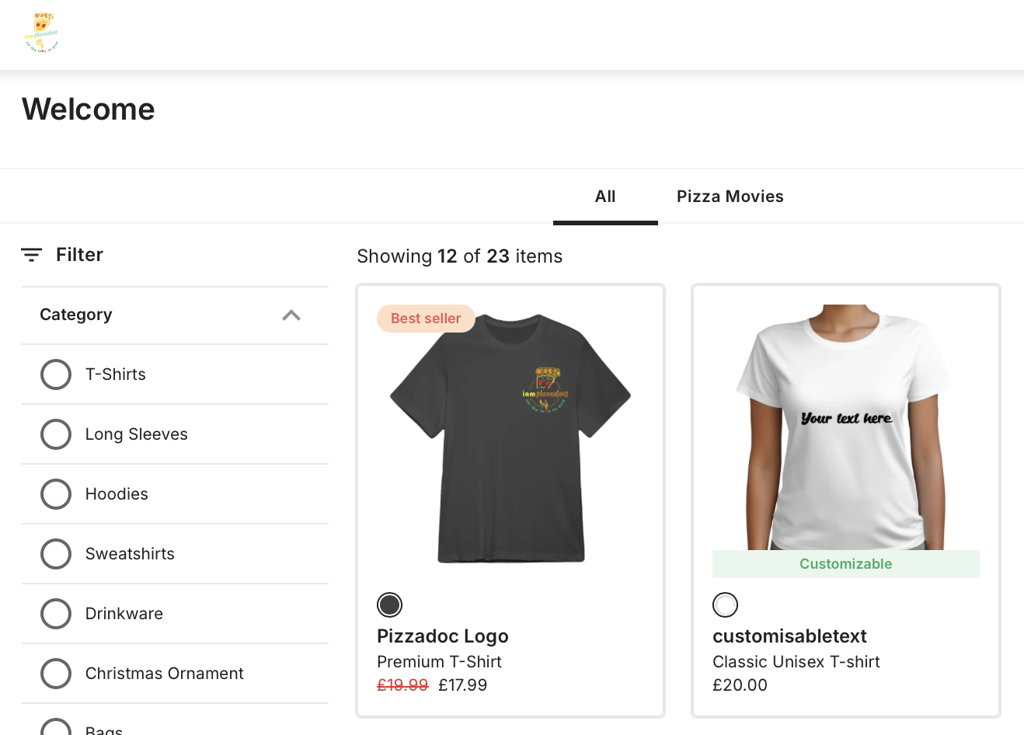
You can see your new campaign in your store, and it will show that it is customisable.
You can test the customization process by clicking in to the campaign.
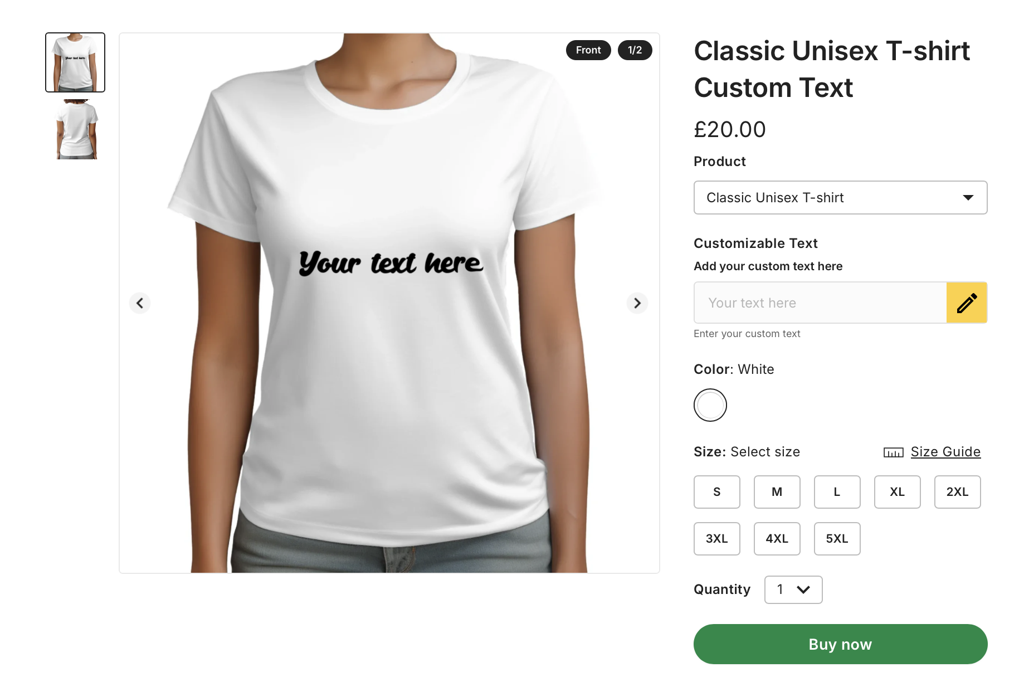
In the Customizable Text field, type some new text
The text you type will be applied to the product.
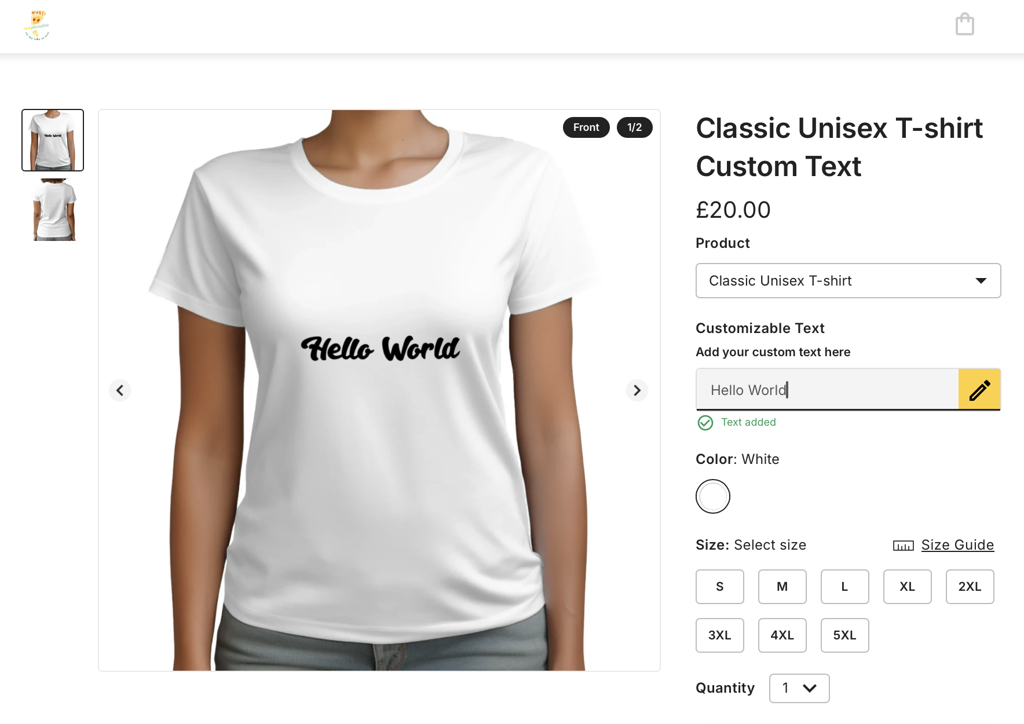
Congratulations, you have created a custom text product
