Login to your seller dashboard https://dashboard.mayzing.com
On the left side navigation, click on Discounts.
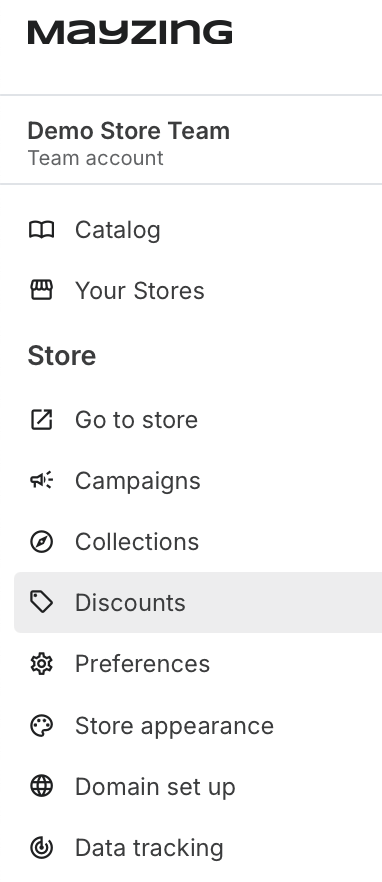
You will now be in the discount section of the Mayzing dashboard.
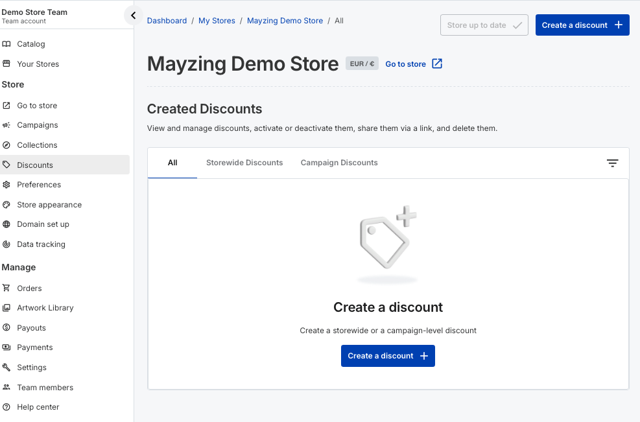
Click on Create a discount.
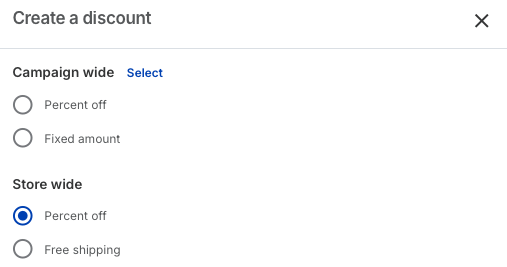
Th next screen allows you to choose whether you want to create a campaign specific discount, or whether you want it to be storewide.
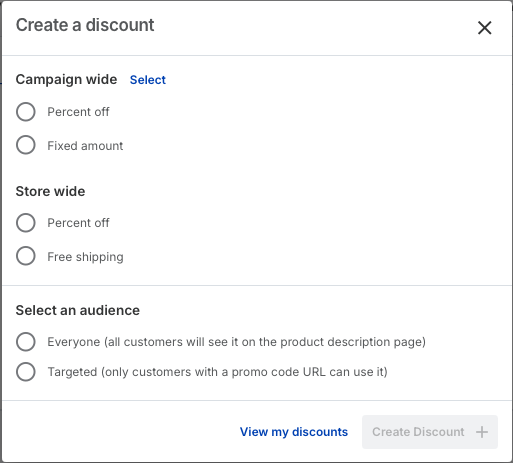
For this example, we’ll create a store wide, fixed percentage discount of 10%, for a targeted audience.
Under Store wide, click percent off
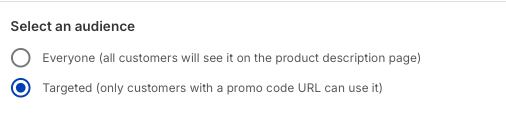
Under Select an audience, click Targeted
Click Create Discount.
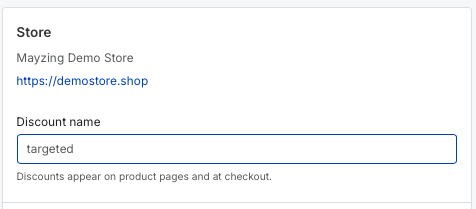
Give your discount a name, this is what you’ll see when you are looking at your discount on your dashboard. For this example
we’ll use targeted.
Now create the promo code, this is the word that will be appended to your usual store url, to let the Platform know that the person who has clicked on this is to be offered the discount you are creating. For this example we’ll use targeted.
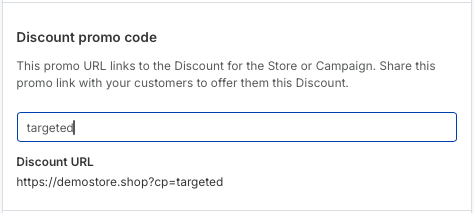
You’ll see under the discount name section that the URL you will be sharing with your buyers has automatically been created.
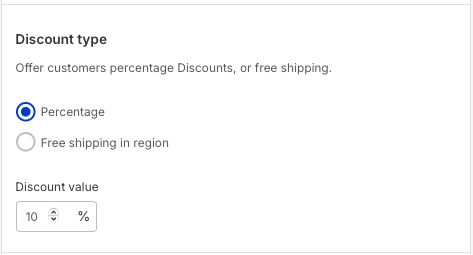
Now to create the discount type, as we are creating a percentage discount, click percentage. And in the discount value add the discount you would like to offer. We’re setting this at 10%, so enter 10.
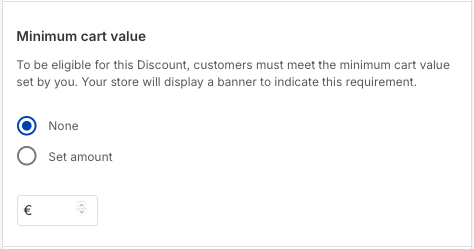
Next you can choose to only apply the discount if the cart has exceeded value X, or offer it to everyone. In this instance we’ll offer it to everyone, so leave it as none.
Press Create discount.
You will see a message confirming that your discount has been created.

You will be returned to the discounts screen, where you can see your created discount.
Publish the changes so they are applied to your store.
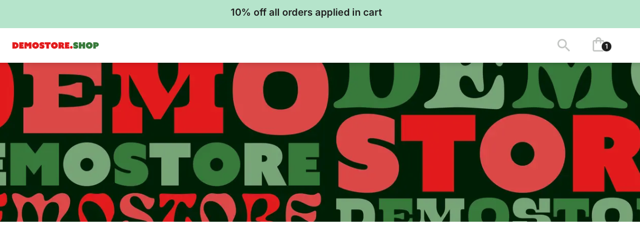
Once published, you can click the hyperlink button next to your created discount, this will copy the special URL that when people use, will show a banner confirming they’ll get 10% off all orders.
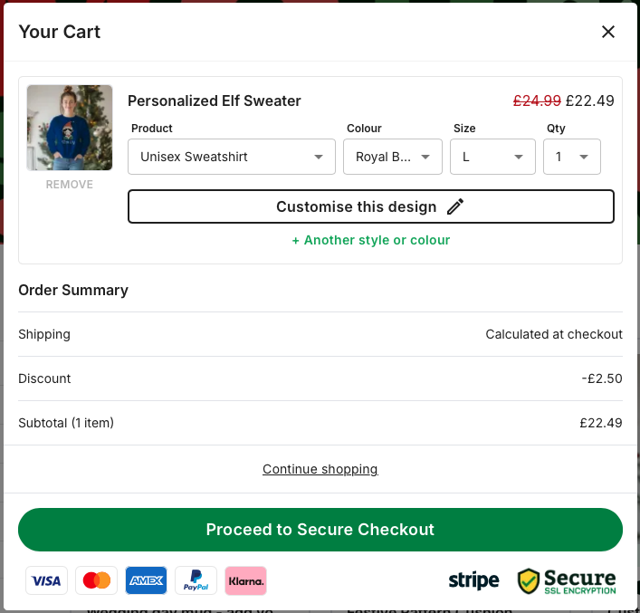
Once they add an item to their cart, the discount will be applied, and they will see the new price.
You are now ready to go and share the link with your target audience.
