Pixel (browser-based tracking) captures user interactions on your storefront (e.g. views, add to cart, purchases).
Conversions API (server-based tracking) sends those same events directly from Mayzing’s servers to Meta — ensuring you still capture data if buyers use ad blockers, privacy settings, or certain devices.
When used together, they provide the most complete and reliable performance data.
Before connecting your Pixel or CAPI, your store domain needs to be verified in Meta Business Manager.
Mayzing automates this process — you don’t need to edit DNS records manually.
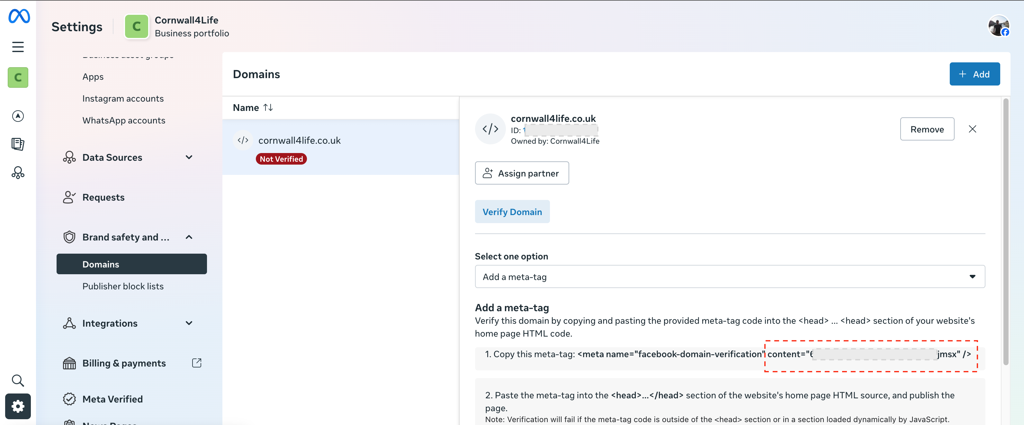
In your Meta Business Manager, go to Brand Safety → Domains.
Click Add and enter your Mayzing store domain (e.g. mystore.com).
In the verification options, choose Meta-tag Verification.
Copy the meta tag verification code that Meta provides (you’ll only need the code value - do not include quotation marks).
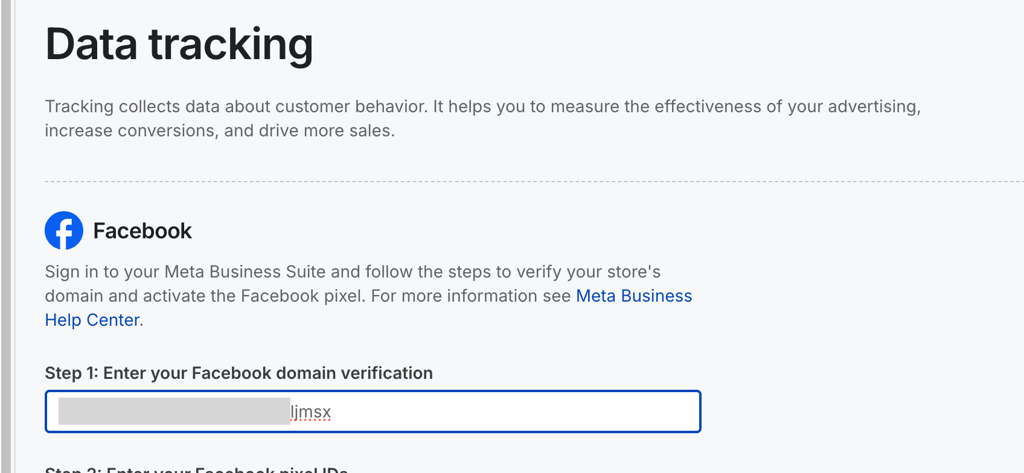
In your Mayzing Dashboard → Data Tracking → Facebook Pixel (Step 1) for you store, paste that code into the Domain Verification field and click Save.
→ Mayzing automatically adds the correct meta tag to your storefront.
Return to Meta Business Manager and click Verify Domain.
→ Your domain should verify instantly, however Meta documentation notes that it may take up to 72 hours to find a meta-code tag.
Once verified, you can continue with adding your Facebook Pixel ID and Conversions API Access Token. For more information on this topic, see Meta’s Domain Verification Guide.
In Meta Events Manager, locate your Pixel (usually under your chosen Business Account).
If you don’t already have a Facebook Pixel, follow Meta’s guide to create a new Pixel in Events Manager before continuing.
Copy your Pixel ID (found in Meta’s Events Manager under your chosen Pixel).
In the Data Tracking section on Mayzing, paste your Pixel ID into the Pixel ID field (you can have up to 2 Pixels per store)
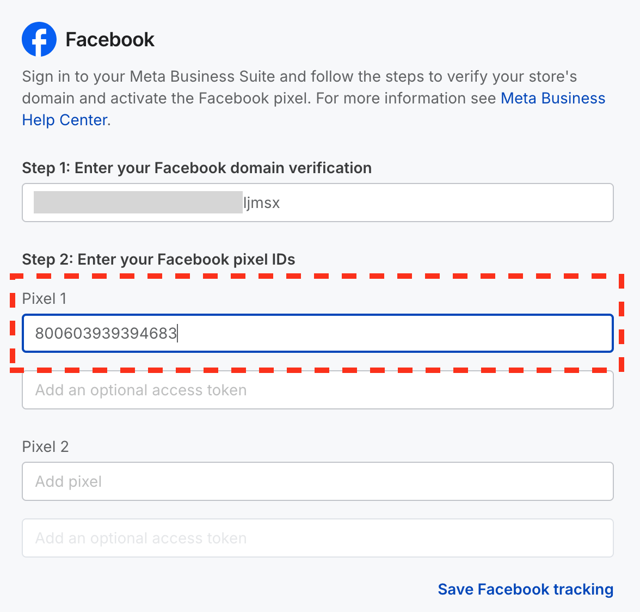
Click Save to confirm.
This connects your Mayzing storefront to your Meta Pixel, allowing browser-based events (like “PageView” or “AddToCart”) to begin tracking. You can verify the Pixel is sending events using the Facebook Pixel Helper extension for Chrome.
The Conversions API adds server-side tracking for more accurate purchase and conversion reporting.
Go to your Meta Business Manager → Events Manager.
Select your Pixel (the same one used in Step 2).
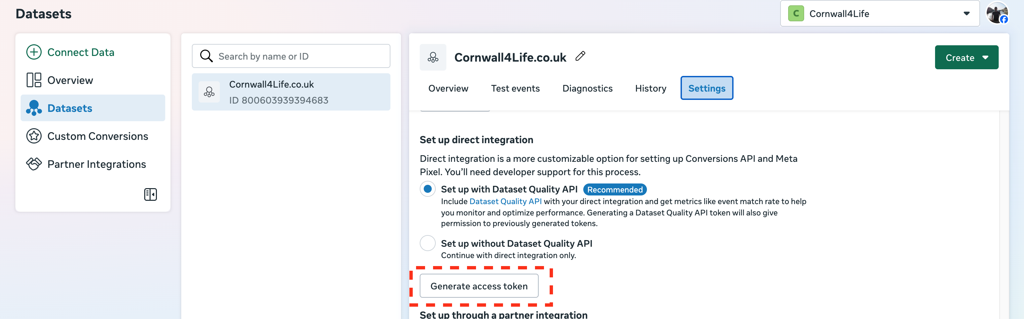
Click the Settings tab.
Scroll down to the Conversions API section, Set up Direct integration and click Generate Access Token. Select the Dataset for the Pixel, and click Generate Access Token.
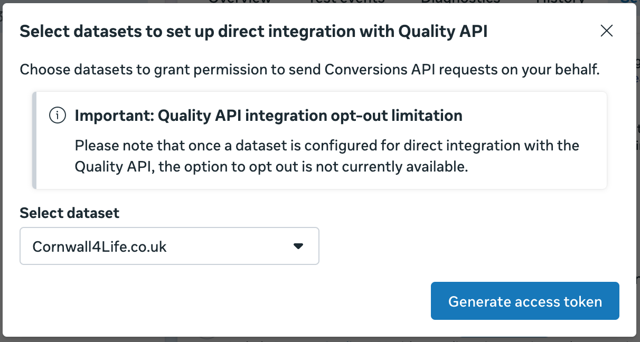
Copy your Access Token.
(This token authorises Mayzing to securely send purchase and event data to Meta on your behalf.)
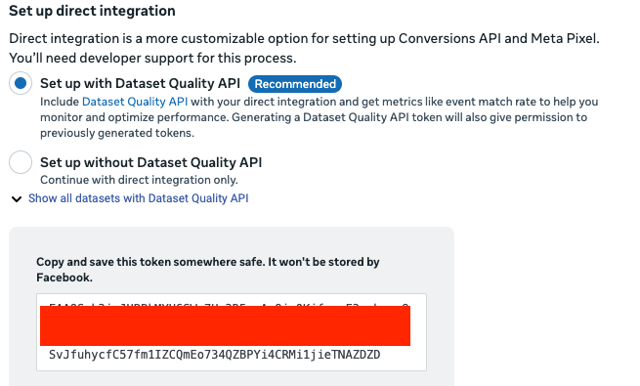
Copy and save this token somewhere safe. It won't be stored by Facebook, and will not be visible in Business Manager again.
Return to your Mayzing Dashboard → Data Tracking → Facebook Pixel.
Under Conversions API (optional), paste your Access Token.
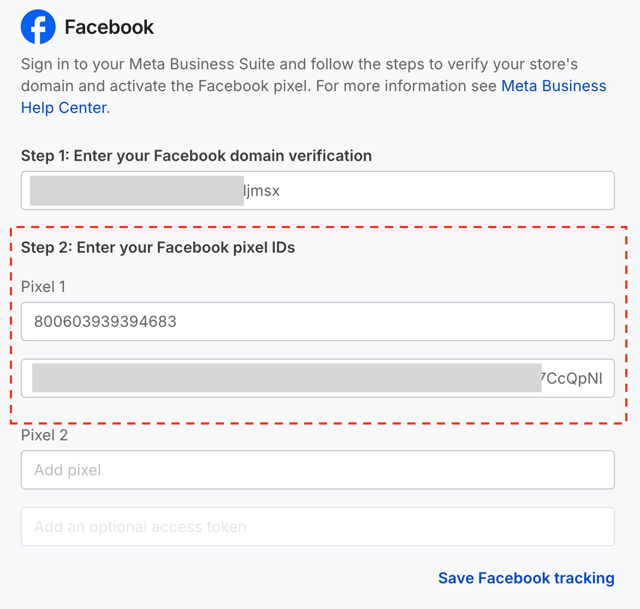
Click Save Facebook Tracking.
Once complete, Mayzing will send both Pixel and CAPI events automatically — no further setup is required.
 Recommended Setup Checklist
Step
Description
Required
1 | Facebook Domain Verification |
|
2 | Add Facebook Pixel ID |
|
3 | Generate & Add Access Token (CAPI) |
|
 Tips for Best Results
Use the same Pixel for both Pixel and CAPI setup.
In Meta’s Event Manager, you can confirm that events are received from both Browser (Pixel) and Server (CAPI) sources - see below.
Allow up to a few hours for new tracking data to appear in Meta Ads Manager.
How to confirm Meta is receiving events
Once you’ve saved your Pixel and (optionally) Conversions API details, you can verify that events are being received correctly in Meta Events Manager.
Open Meta Business Manager → Events Manager and select your Pixel.
Go to the Overview tab.
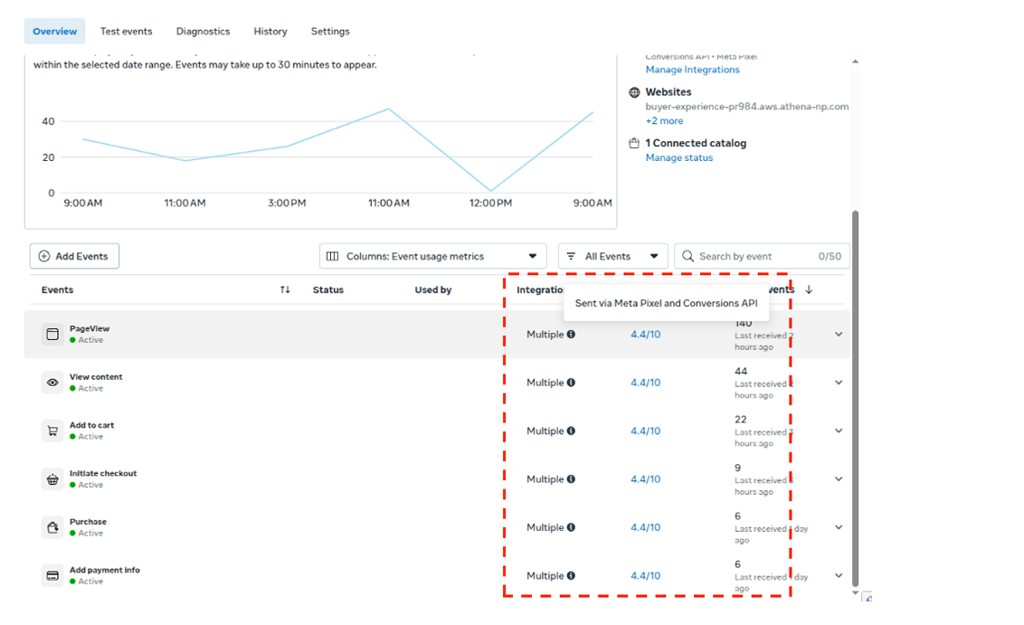
You’ll see your tracked events (e.g. PageView, Add to cart, Purchase) listed in the table.
Check the Integration column:
If your tracking is set up using only the Pixel, you’ll see Meta Pixel listed as the integration source.
If both the Meta Pixel and Conversions API are active, you’ll see Multiple — hover over this to confirm it says “Sent via Meta Pixel and Conversions API.”
Active events will show a green dot and a recent timestamp under “Last Received.”
→ This confirms that Meta is successfully receiving data from your Mayzing store.